Why Use an ODBC-to-JDBC Bridge?
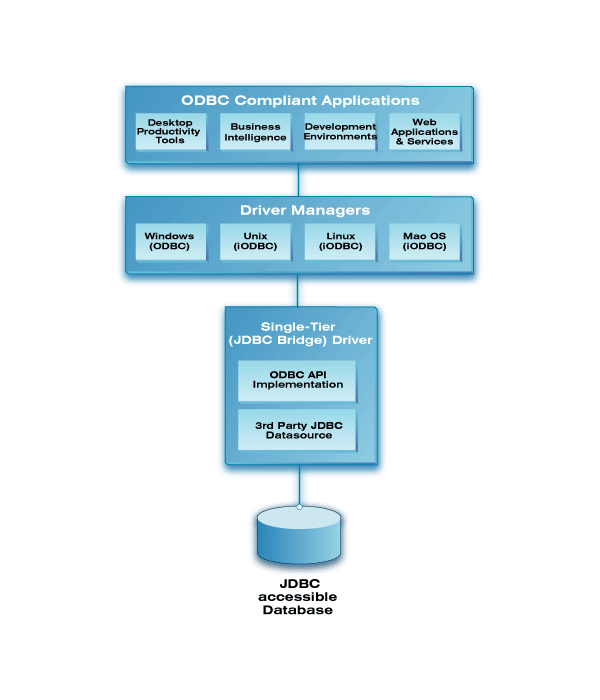
This guide addresses a common and critical scenario: your target data source offers only a JDBC driver for connectivity, but your client application is built to use ODBC. The OpenLink ODBC-to-JDBC Bridge seamlessly translates between these two standards, unlocking access that would otherwise be impossible. The Lite Edition provides this core functionality with the following advantages:
Direct & Simple Connectivity
The single-tier architecture loads directly into your application's process space. There are no separate server components to install or manage, simplifying setup and reducing complexity.
Universal JDBC Compatibility
Unlock access to any JDBC-compliant data source from your existing ODBC applications. The bridge ensures broad compatibility with a wide range of modern databases and data sources.
High-Performance Bridging
Benefit from an efficient, in-process translation between ODBC and JDBC API calls. This direct bridging architecture ensures minimal performance overhead for your data access operations.
Overview
This installation guide walks you through the installation of the Lite Edition ODBC to JDBC Bridge Driver to a Personal or Application Server host functioning as a client to a database that’s accessible via its native JDBC Driver.
Pre-Installation Requirements
- A 64-bit JVM must be installed and configured.
- A third-party or native JDBC driver that connects to the target database must be available.
- The JDBC driver's
.jarfile (or a symbolic link to it) must be included in the activeCLASSPATHenvironment variable. - The JDBC driver's class name must be known.
- The JDBC connection URL that connects to your target JDBC Data Source must be known.
- The location of the
libjvm.soshared library must be set in theLD_LIBRARY_PATHenvironment variable.
Installation Steps
Download the Installer Archive
Visit the OpenLink ODBC Lite Edition Driver Download Page or use curl
to download the installer archives and install.sh script directly:
curl -O https://download3.openlinksw.com/uda/components/misc/install.sh
curl -O https://download3.openlinksw.com/uda/components/9.0/x86_64-generic-linux-glibc25-64/jdbc_lt.taz
curl -O https://download3.openlinksw.com/uda/components/9.0/x86_64-generic-linux-glibc25-64/odbc_admin.tazPrepare Installation Directory
Log onto the target machine, create a suitable OpenLink installation directory (e.g.,
/opt/openlink), and copy all downloaded components (install.sh,
jdbc_lt.taz, odbc_admin.taz) into it.
Run the Installer
Install the OpenLink components using the install.sh shell script:
sh install.shTake care to enter correct information when prompted (ports, passwords, etc.) and note these details for future use. The installation should finish without error.
Configuration
Configure Environment Script
Open the file {OPENLINK_INSTALL}/openlink.sh with a text editor. Locate the
LD_LIBRARY_PATH setting and ensure it points to the directory containing your
libjvm.so shared library.
LD_LIBRARY_PATH={Path to libjvm.so file}:$LD_LIBRARY_PATHSet Up Environment
From within the {OPENLINK_INSTALL} directory, source the environment script:
. ./openlink.shConfigure JDBC Environment
Open the file {OPENLINK_INSTALL}/bin/openlink.ini. Locate the
[Environment Jdbc 1.8] section and set the CLASSPATH to the location
of your JDBC driver's .jar file.
[Environment Jdbc 1.8]
CLASSPATH = {JDBC Driver JAR file}:.Apply License File
Place your license file (jdbc_lt.lic) in the {OPENLINK_INSTALL}/bin
directory.
Start License Manager
Navigate to the {OPENLINK_INSTALL}/bin directory and start the OpenLink License
Manager:
./oplmgr +startCreate Data Source Name (DSN)
Open the file {OPENLINK_INSTALL}/bin/odbc.ini. Locate and edit the sample DSN
[jdbc18_lite_unicode] with your specific connection details:
[jdbc18_lite_unicode]
Driver          = {OPENLINK_INSTALL}/lib/jdbc18_mt_lu.so
ServerType      = Jdbc 1.8
Username        = {username}
Password        = {optional password}
Database        = {JDBC Driver class name}
Options         = {JDBC connection URL string}
FetchBufferSize = 99
ReadOnly        = no
DeferLongFetch  = no
JetFix          = no
WideAsUTF16     = Y
Description     = Sample Jdbc 1.8 Lite Connection
Test Connection
Using the iODBC Runtime Environment
Use the OpenLink iODBC iodbctest tool to
make a test connection:
$ cd {OPENLINK_INSTALL}
$ . ./openlink.sh
$ iodbctest "DSN=jdbc18_lite_unicode;UID={username};PWD=xxxxxxxx"
Once connected, you can issue SQL statements directly from the SQL> prompt.
Using the unixODBC Runtime Environment
When using the unixODBC Driver Manager, ensure
the WideAsUTF16 = Y parameter is in your DSN. You can then test with its isql
utility:
$ isql jdbc18_lite_unicode {username} {password}Technical Glossary
ODBC (Open Database Connectivity)
A standard API for accessing database management systems (DBMS).
JDBC (Java Database Connectivity)
The Java native API that enables Java applications to interact with relational databases.
DSN (Data Source Name)
A named configuration for connecting to a specific database, containing the driver, location, and
credentials, typically stored in odbc.ini.
CLASSPATH
An environment variable that tells the Java Virtual Machine (JVM) where to find class libraries,
including the JDBC driver .jar files.
LD_LIBRARY_PATH
An environment variable on Unix-like systems that specifies directories where the dynamic linker
should look for shared libraries, such as libjvm.so.
Single-Tier Driver
A driver architecture where all components are loaded directly into the client application's process space, with no separate server middleware.
Frequently Asked Questions
After copying all downloaded files to an installation directory, run the command
sh install.sh to begin the installation process.
From within the installation directory, you must source the environment script by running the
command: . ./openlink.sh. This sets up all necessary environment variables.
The license file (jdbc_lt.lic) must be placed in the
{OPENLINK_INSTALL}/bin directory.
You need to edit the {OPENLINK_INSTALL}/bin/odbc.ini file to configure a DSN for the
ODBC-to-JDBC bridge.
The 'Database' parameter should be set to the JDBC driver's class name (e.g.,
org.postgresql.Driver). The 'Options' parameter should be set to the full JDBC
connection URL string.
The most common errors are incorrect paths in the CLASSPATH (for the JDBC driver
.jar) and LD_LIBRARY_PATH (for libjvm.so). Double-check
these variables in your openlink.sh and openlink.ini files.