Overview
This installation guide walks you through installation of the OpenLink Lite (Single-Tier) Edition ODBC to ODBC Bridge Driver to a Personal or Application Server host functioning as a client to a database that's accessible via its native ODBC Driver.
Why OpenLink ODBC Bridge?
ODBC is a standard native API for DBMS interaction. However, basic connectivity doesn't address data security, privacy, and administrative challenges. OpenLink's Bridge Connectors solve this.
Fine-Grained Access Control
Powerful attribute-based access controls (ABAC) as ODBC session-level enforcers of data access policies, aligned with governance requirements and compliance standards.
Deployment Flexibility
Flexible topology options essential for managing large-scale ODBC-based client applications and services in enterprise environments.

Download
Visit the Download Page
Visit the OpenLink ODBC Lite Edition Driver Download Page to download the appropriate ODBC to ODBC Bridge Driver.
Alternative: Download via curl
Alternatively, curl can be used to download the installer archives directly:
curl -O https://download3.openlinksw.com/uda/components/8.0/x86_64-generic-win-64/wal8odbc.msiPre-Installation Configuration
- You must possess third-party or native ODBC drivers that connect to your target data source. A client portion of these drivers must be installed on the same machine as the Multi-Tier "Enterprise" Edition Request Broker and Bridge Agent(s) for ODBC Data Sources.
- You must know whether the local ODBC components are 32-bit or 64-bit. The Multi-Tier server components must match the bit format of the local ODBC components, not the OS.
- A system ODBC DSN must be created for the third-party or native ODBC driver.
Installation
Log In to Target Machine
Log onto the target machine where you will install the driver components with administrative privileges.
Copy MSI File
Copy or download the windows MSI installer to the target machine: wal8odbc.msi.
Run MSI Installer
Run the MSI installer to install the Lite Single-Tier ODBC-ODBC Bridge. Take care to enter correct information when prompted and note these down for future use.
Verify Installation
The installation should complete without error.
Configuration
Environment Variables
The installer will have automatically set up all the environment variables required to use the OpenLink drivers.
License File
Place the License file (odbc_lt.lic) either purchased or obtained during the
evaluation download process in the {OPENLINK_INSTALL}\bin directory.
Create Data Source Name (DSN)
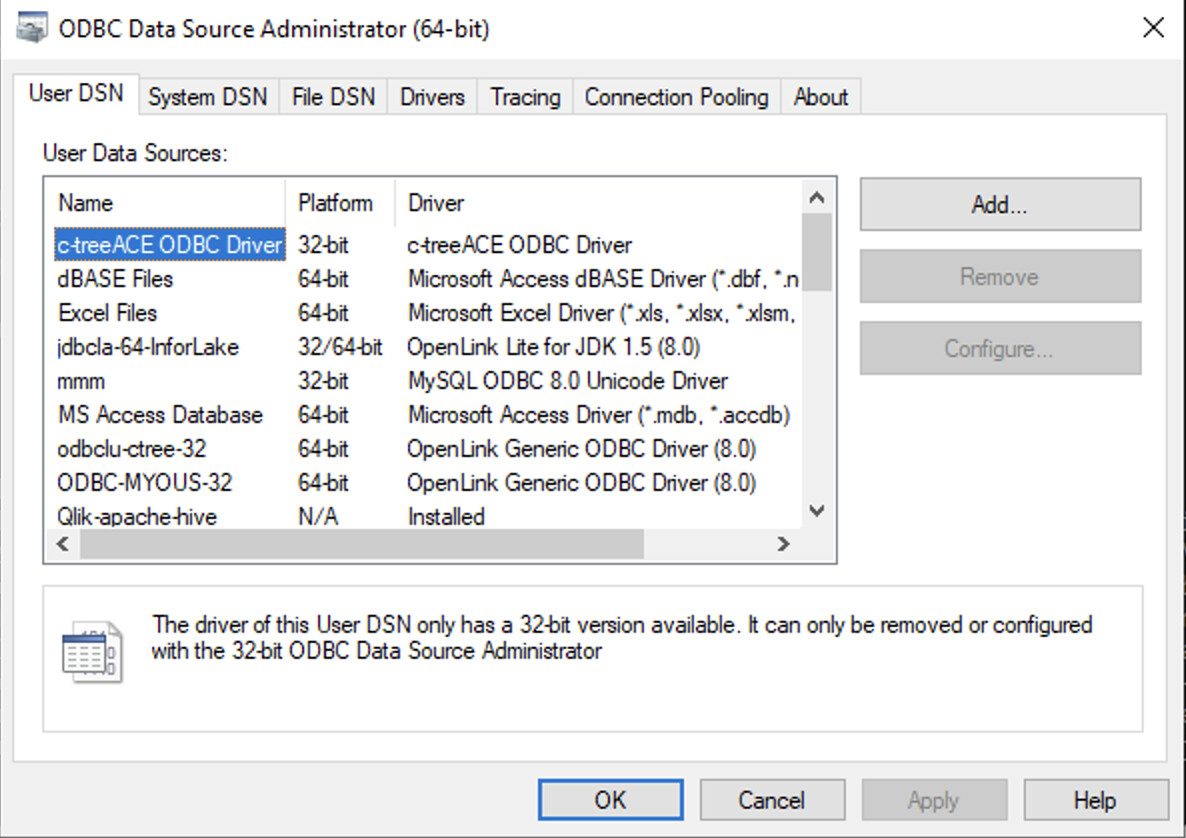
Open ODBC Data Source Administrator
Open the ODBC Data Source Administrator program from the Windows Control Panel or Start Menu.
Add New Data Source
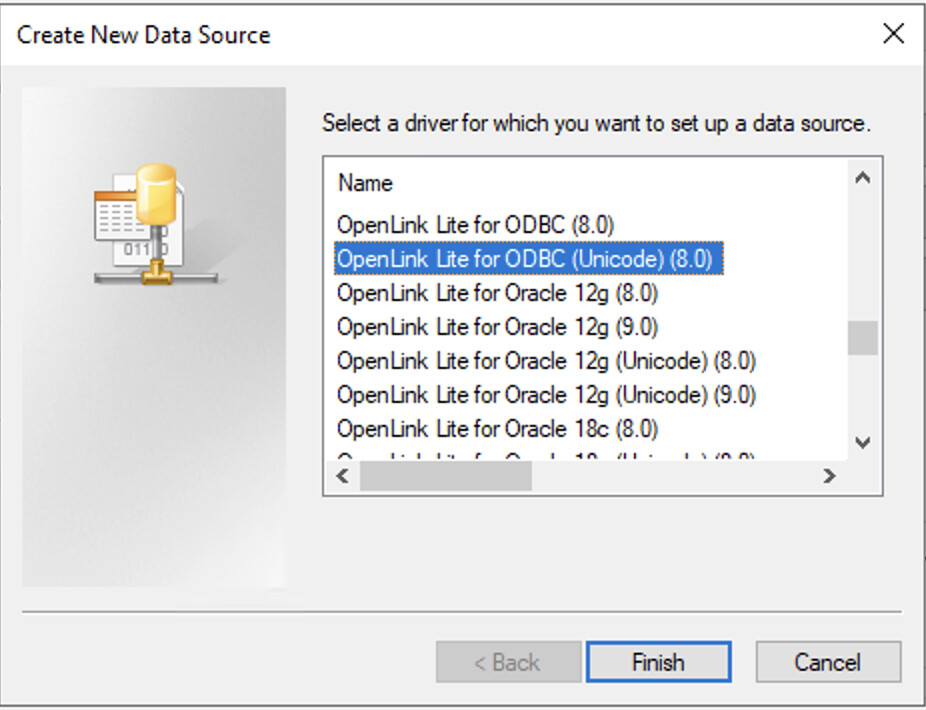
Click on the Add button and select the OpenLink Lite for ODBC (Unicode)(8.0) driver.
Configure DSN Name
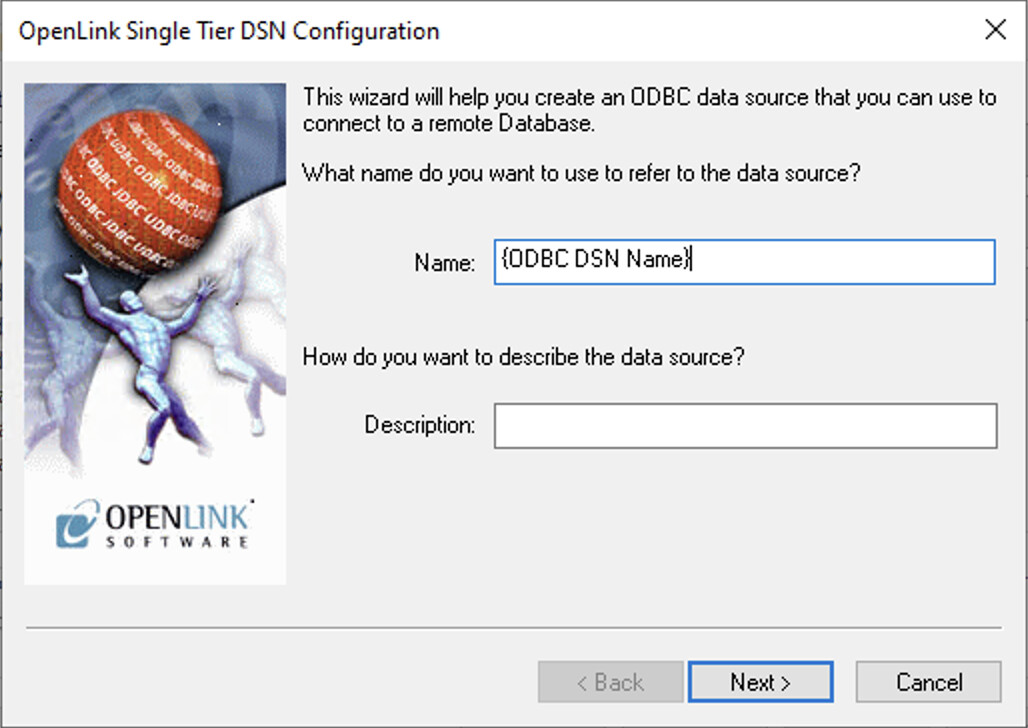
Enter a descriptive name for your data source (e.g., {ODBC DSN Name}).
Select Target Database
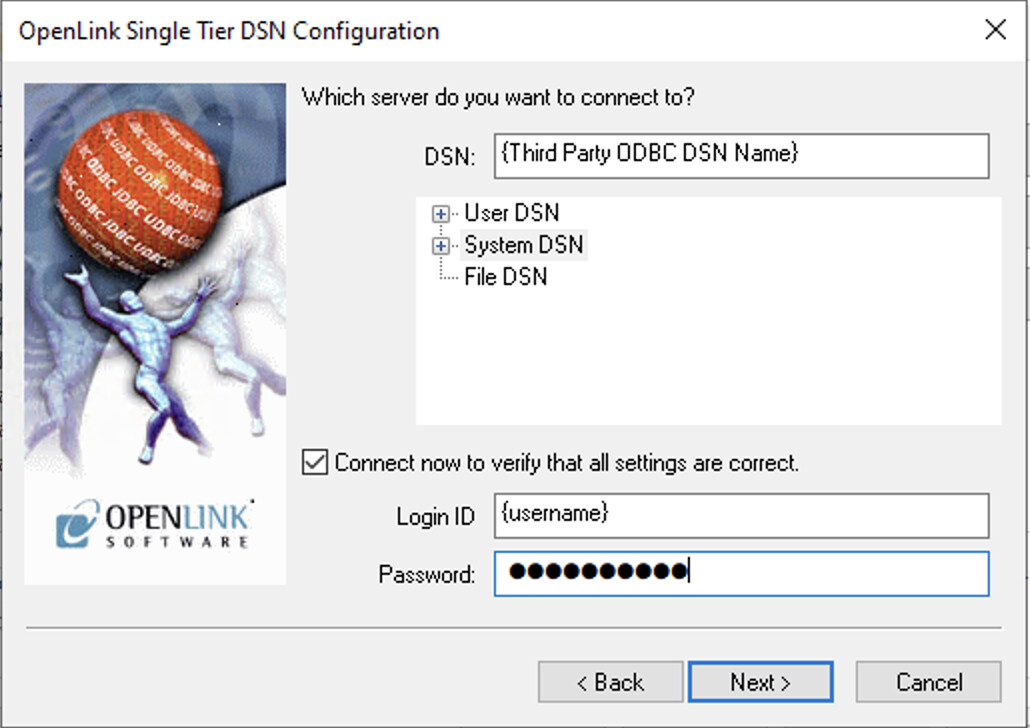
Select the {Third Party ODBC DSN Name} from the list of available DSNs. Enter your Login ID and Password. Check Connect now to verify that all settings are correct and click Next.
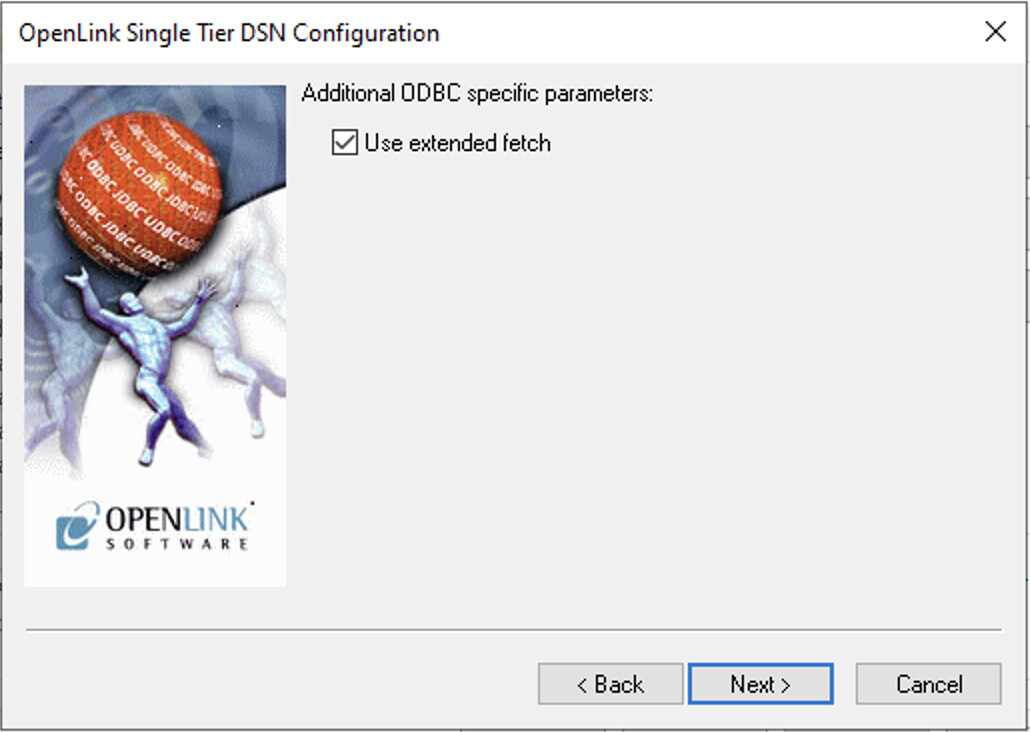
Additional Setup Options
The next 3 setup dialog options can normally be left as the defaults.
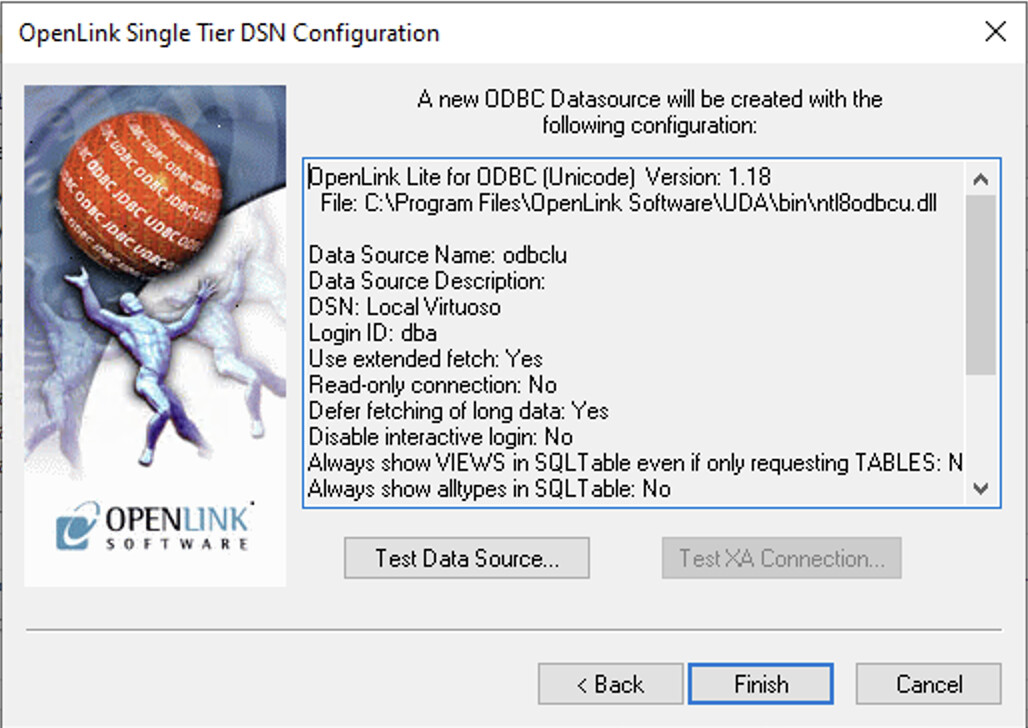
Test Data Source
A summary of your DSN details will be displayed. Click the Test Data Source button to verify the connection.
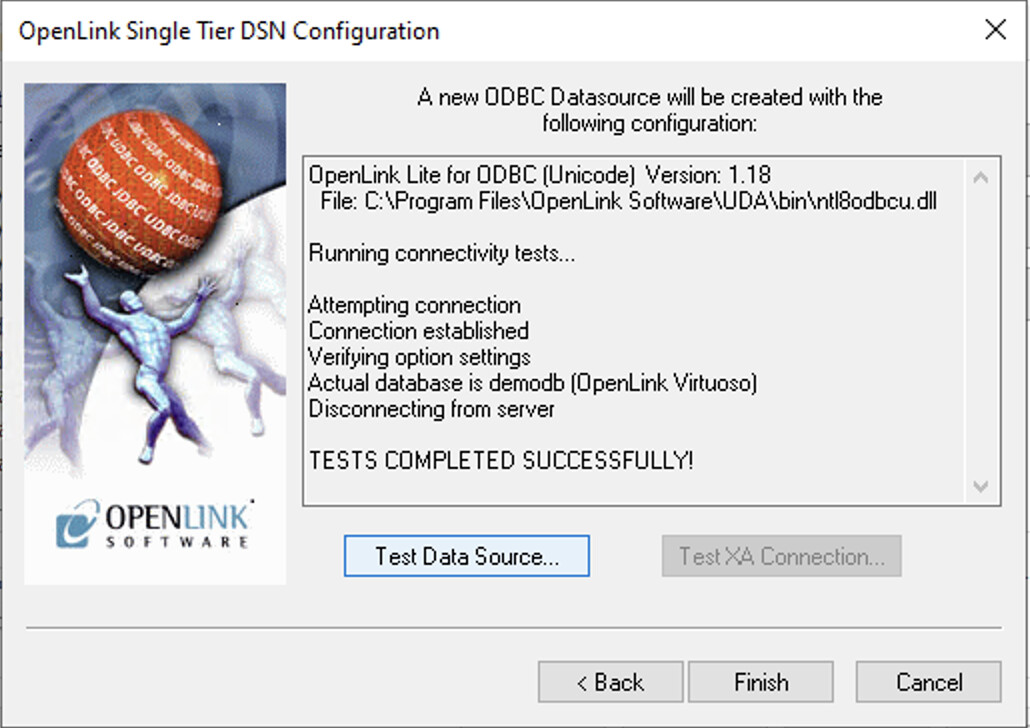
Verify Connection
The connection should complete successfully.
Test Connection
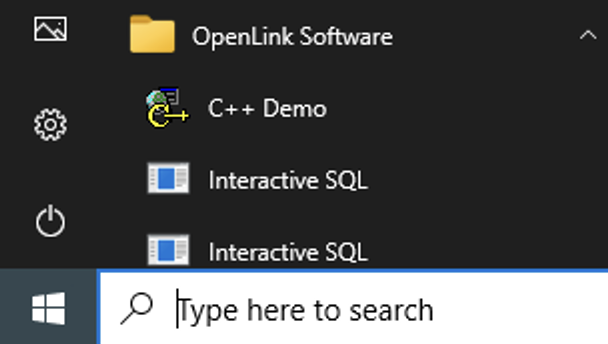
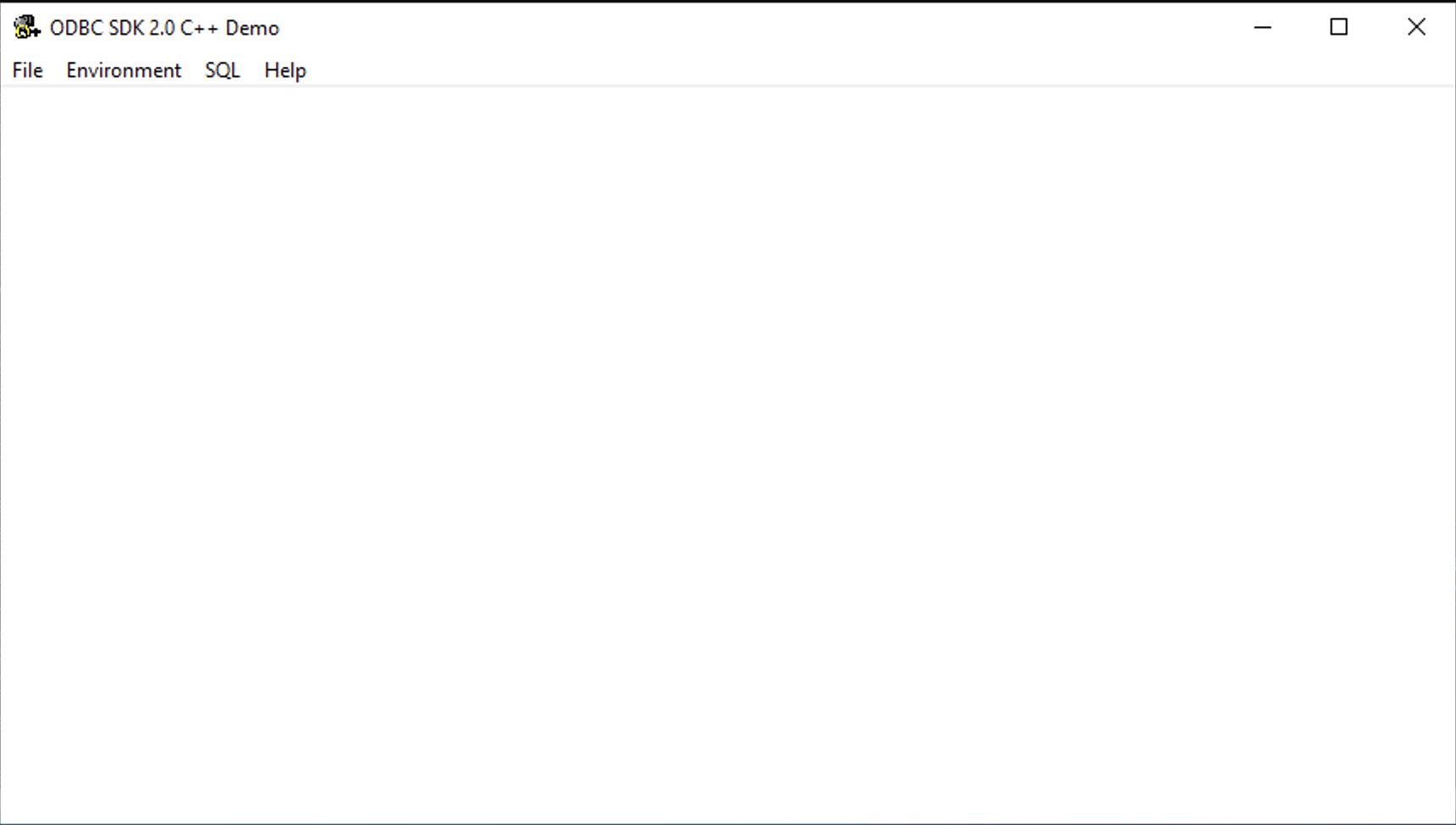
Launch C++ Demo Application
Go to the OpenLink Software program menu item and select the C++ Demo sample application.
Open Connection
Select the Environment → Open Connection menu item.
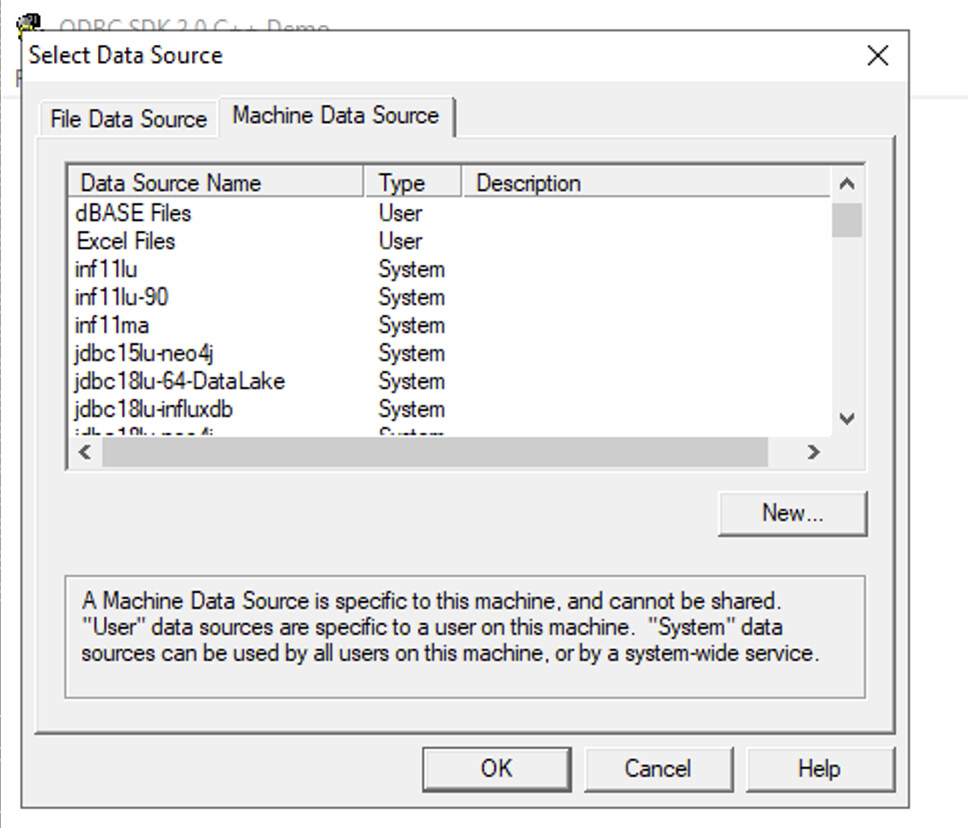
Select DSN
Select the ODBC DSN you created for connection.
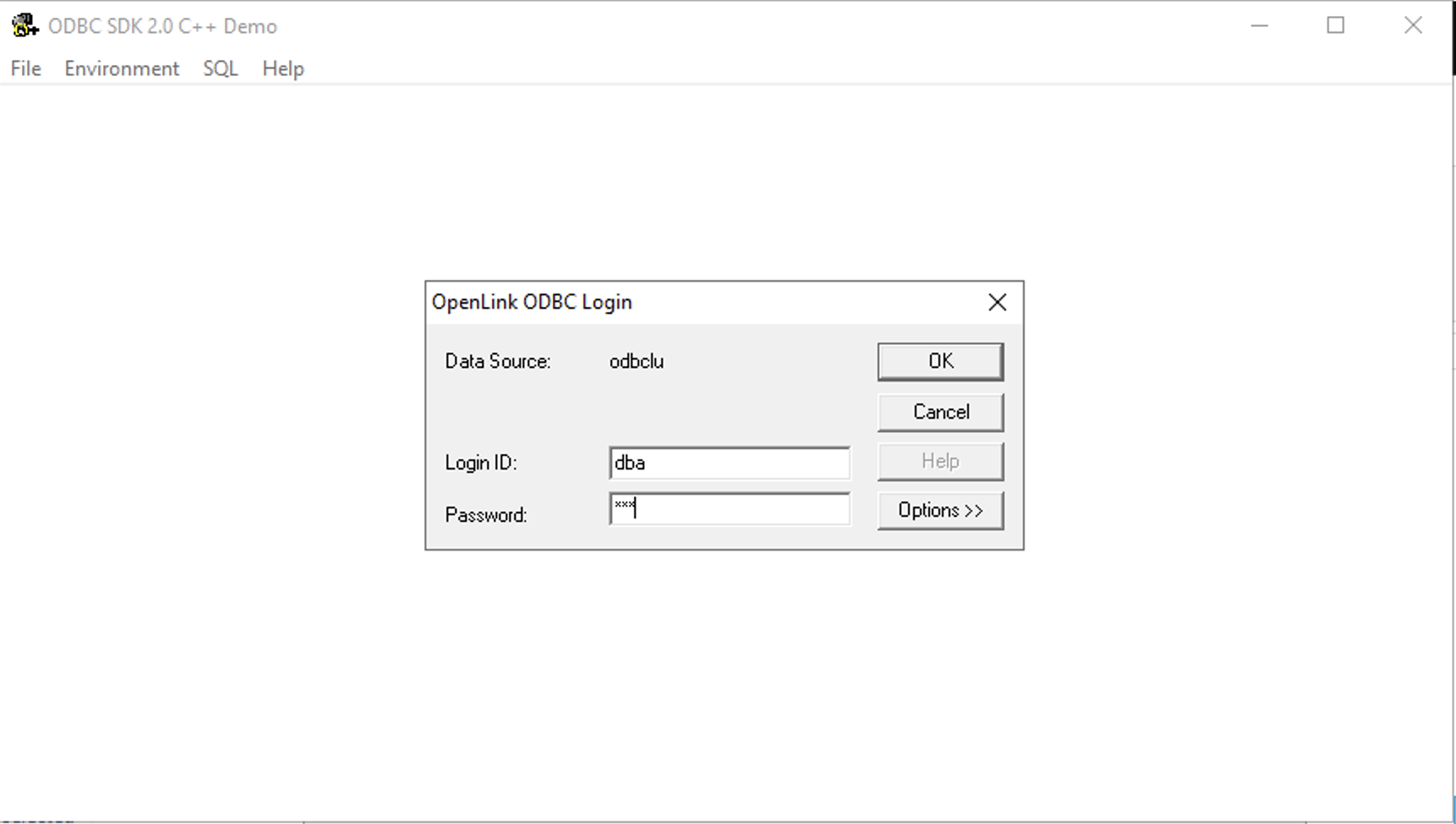
Enter Credentials
Enter the username and password for the target database.
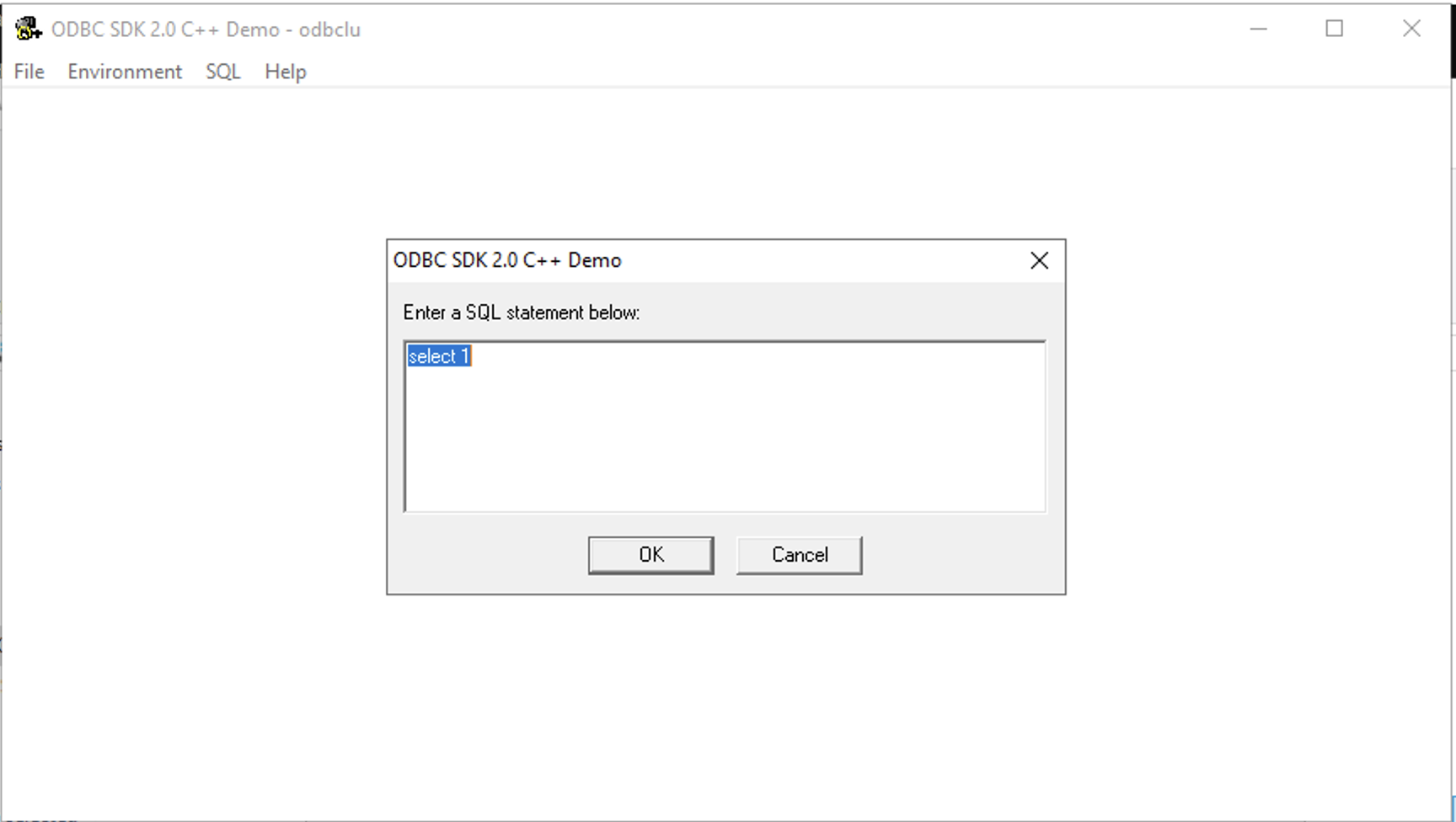
Execute SQL Query
Select the SQL → Execute SQL menu item, enter the SQL query to be executed and click the OK button to execute.
View Results
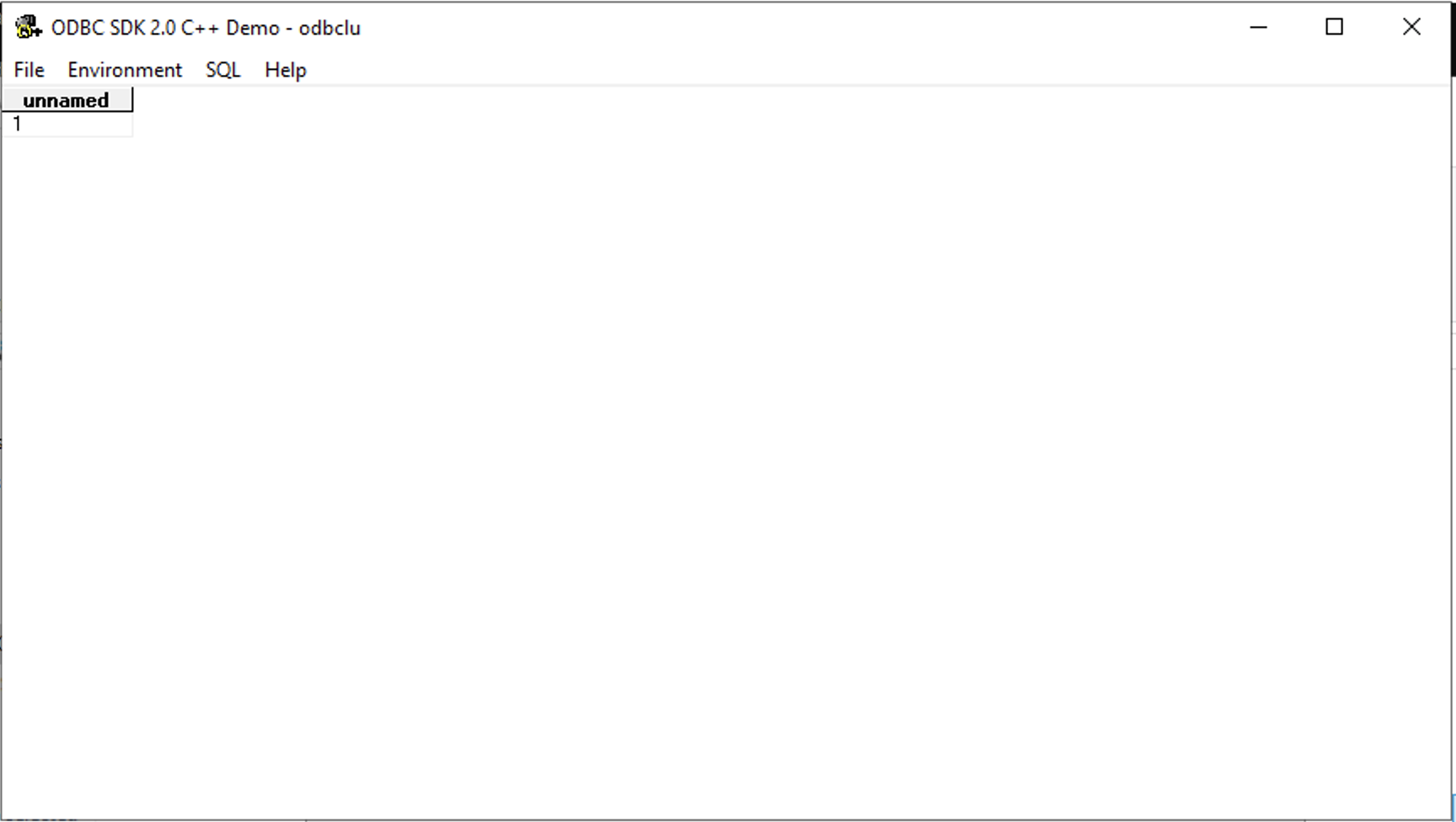
The query results will be displayed, confirming a successful connection.
Glossary of Terms
This section defines key technical terms and components related to the OpenLink ODBC to ODBC Bridge Driver installation and configuration.
ODBC
Open Database Connectivity (ODBC) is a standard C-language application programming interface (API) for accessing database management systems (DBMS). It provides a standardized way for applications to access different databases regardless of the database vendor.
DSN
Data Source Name (DSN) is a data structure that contains the information about a specific database that an ODBC driver needs in order to connect to it. On Windows, DSNs are managed using the ODBC Data Source Administrator tool.
ODBC Data Source Administrator
The ODBC Data Source Administrator is a standard Windows utility for creating, configuring, and managing ODBC Data Source Names (DSNs). It provides a graphical interface for setting up driver connections.
PATH Environment Variable
The PATH is a system variable on Windows that specifies a set of directories where executable programs and libraries (DLLs) are located. The OpenLink installer automatically adds its directories to the system PATH to ensure components are found.
Single-Tier Driver
A Single-Tier driver, like the Lite Edition, is a library that loads directly into the client application's process space. It contains all the logic needed to connect to the target database's own ODBC driver without requiring a separate server component.
Frequently Asked Questions
After downloading the .msi file, simply double-click it to launch the installation
wizard. Follow the on-screen prompts to complete the installation.
No. The Windows installer (MSI) automatically configures all necessary system environment
variables, including updating the system PATH, to ensure all OpenLink components
function correctly.
The license file (odbc_lt.lic) must be placed in the bin sub-directory
of your OpenLink installation folder (e.g.,
C:\Program Files\OpenLink Software\UDA\bin).
Use the "ODBC Data Source Administrator" tool in Windows. You can find it by searching for "ODBC" in the Start Menu. Be sure to use the 32-bit or 64-bit version that matches your application's architecture.
The easiest way is to use the "Test Data Source" button on the final page of the DSN configuration wizard in the ODBC Data Source Administrator. You can also use the C++ Demo application included with the installation.
This usually means your client application, the OpenLink driver, and the target database's native ODBC driver are not all the same bitness (32-bit or 64-bit). For a Single-Tier driver, all three components must match. For example, a 32-bit application requires the 32-bit OpenLink driver and the 32-bit native driver.
Additional Resources
- OpenLink Web Site
- OpenLink Documentation
- OpenLink ODBC to ODBC Bridge Driver
- OpenLink Troubleshooting Resources
- OpenLink Support
- OpenLink Community Forum