Yes.
OpenLink produces data access drivers that connect to Progress and OpenEdge.
Progress version support
Progress version support
Components from OpenLink Software support ODBC, JDBC, OLE-DB, and ADO.NET client connections to Progress 7.3E and later, including all versions of Progress 8.x, Progress 9.x, and OpenEdge 10.x.
Detecting the Progress Version
Detecting the Progress Version
Use a text editor to open the version file found in the root of your Progress installation.
This file will display the Progress version and patch level.
Understanding the Progress native client
Understanding the Progress native client
The Progress native client is a Progress Software product that provides access to Progress databases via the Progress proprietary communications protocol.
The SQL-89 version of this product is called Progress® Client Networking, and may be used for connections to Progress 9.1 and earlier.
The SQL-92 version of this product is called Progress® SQL-92 Client Access, and may be used for connections to Progress 9.1 and later, including OpenEdge 10.x.
The Progress® Client Networking or Progress® SQL-92 Client Access version should match the target Progress server version as closely as possible.
Major-version is the minimum requirement; dot-version is better; letter-version is better still.
When do I need the Progress native client?
When do I need the Progress native client?
When using any Single-Tier data access driver for Progress, the Progress native client must be installed on the same machine as the Single-Tier driver.
When using any Multi-Tier data access driver for SQL-89 connections to Progress, and the OpenLink Request Broker and Progress-specific Database Agent are not installed on the Progress server host, the Progress native client (Progress® Client Networking) must be installed on the same machine as the Broker and Agent.
When using any Multi-Tier data access driver for SQL-92 connections to Progress or OpenEdge, the Progress native client (Progress® Client Networking) must be installed on the same machine as the OpenLink Request Broker and Progress-specific Database Agent, including when this is also the Progress server host.
Obtaining the Progress native client (a.k.a "Progress® Client Networking" or "Progress® SQL-92 Client Access")
Obtaining the Progress native client (a.k.a "Progress® Client Networking" or "Progress® SQL-92 Client Access")
OpenLink Software cannot supply the Progress native client.
The Progress native client typically ships on the standard Progress DBMS install media, and is generally one of several installation options that you can select.
However, packaging and marketing labels are subject to change.
Configure the Progress native client
Configure the Progress native client
Additional configuration is not generally required after installing a Progress native client.
However, you should test your client to confirm functionality.
Use the following instructions to test the functionality of your Progress® Client Networking or Progress® SQL-92 Client Access on Windows operating systems:
Log in to the machine that contains your Progress client software.
Open Notepad (Start menu >> All Programs >> Accessories >> Notepad).
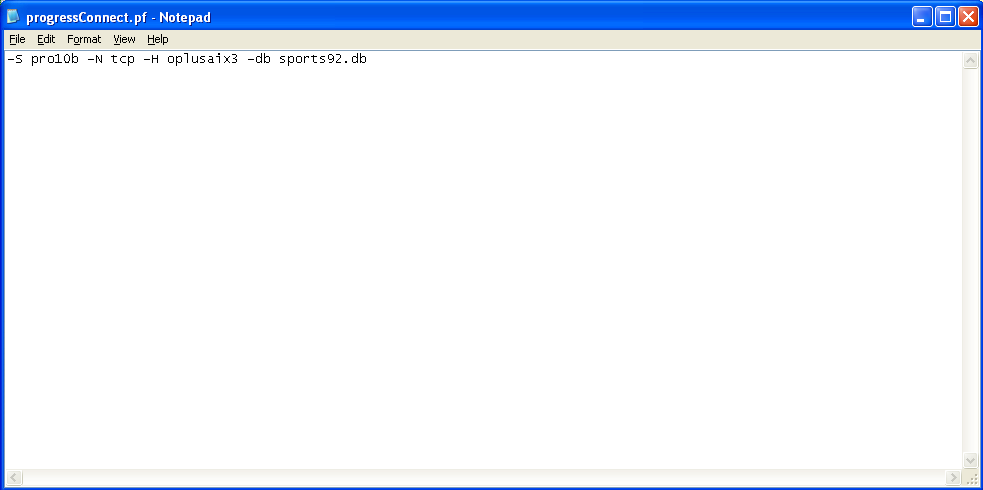
Enter the following string into Notepad, substituting your local values for the Service Name and Hostname:
Name the file progressconnect.pf and save it to C:\Temp.
Exit Notepad.
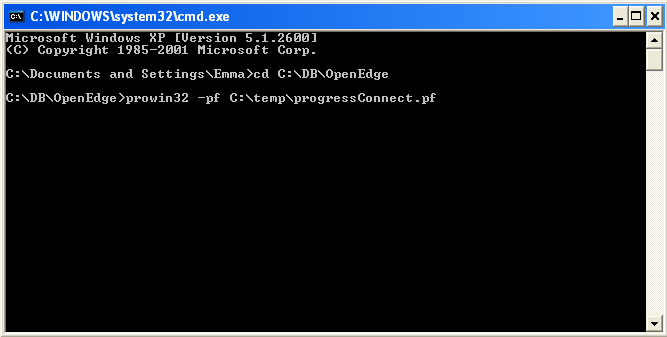
Open an MS-DOS command prompt (Start menu >> Run...
>> cmd).
Navigate to the bin sub-directory of your Progress installation, e.g., C:\Program Files\Progress\bin\.
Run the following command:
Example
prowin32 -pf C:\progressconnect.pf
Wait for the following dialog box to appear.
Provide a username and password for your database (if required).
Click OK.
Wait for the Procedure Editor window to appear.
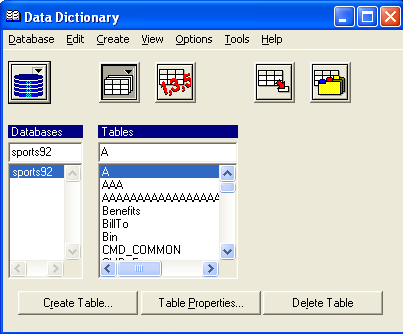
Expand the Tools menu.
Select Data Dictionary.
Use the Data Dictionary Tables list box to view the tables in the database.
Close the Data Dictionary view.
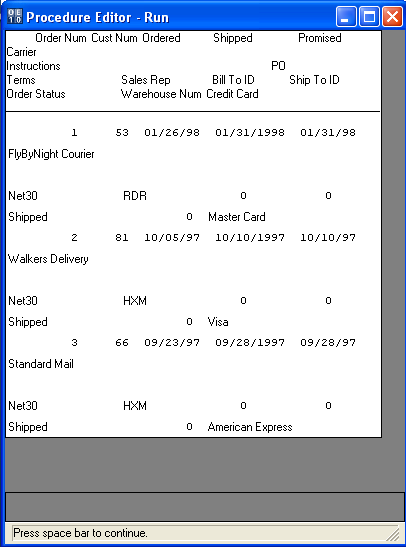
Type a SELECT statement in the main body of the Procedure Editor.
Expand the Compile menu.
Select Run.
Confirm that the result set is correct.
DLC
DLC
The DLC environment variable should be set to the full path to the root of the Progress installation.
PROCFG
PROCFG
The PROCFG environment variable should be set to the full path to the progress.cfg file.
Identifying the Progress startup mode (i.e., sockets vs. shared memory)
Log in to your Progress DBMS server.
Locate the database log file.
Typically, the log file should have the same name as the database .db file with a .lg extension; e.g., the sports92.db file will typically have a corresponding sports92.lg file.
Make a copy of the database log file.
Open the copy with a text editor.
Locate the section covering to the most recent database startup.
Look for lines containing Host Name, Service Name, and Network Type.
These are Progress sockets startup parameters.
Host Name and Service Name should always be present.
For example:
Example
1:50:04 BROKER  0: Host Name (-H): oplusaix3. (4261)
11:50:04 BROKER  0: Service Name (-S): pro91d. (4262)
11:50:04 BROKER  0: Network Type (-N): tcp. (4263)
The important entry for this question is Network Type --
If Network Type "tcp" is present, the database is running in sockets mode.
If Network Type "tcp" is not present, the database is running in shared memory mode.
Identify the Progress SQL mode (i.e., SQL-89 or SQL-92)
Progress 8.x and earlier can only run in SQL-89 mode.
Progress OpenEdge 10.x and later can only run in SQL-92 mode.
Progress 9.x has a hybrid engine that can run in either SQL-89 or SQL-92 mode, or both.
Use the following steps to learn which mode your Progress 9.x instance is running in.
Log in to your Progress DBMS server.
Locate the database log file.
Typically, the log file should have the same name as the database .db file, but with an .lg extension; e.g., the sports92.db file will typically have a corresponding sports92.lg file.
Make a copy of the database log file.
Open the copy with a text editor.
Locate the section corresponding to the most recent database startup.
Look for a line similar to this:
Example
11:50:04 BROKER 0: This broker supports both 4GL and SQL server groups. (8865)
Reference to 4GL indicates SQL-89 mode.
Reference to SQL indicates SQL-92 mode.
Reference to both is referred to as "mixed" mode.
Discovering a Progress server's sockets definition
Log in to your Progress DBMS server.
Locate the database log file.
Typically, the log file should have the same name as the database .db file with a .lg extension; e.g., the sports92.db file will typically have a corresponding sports92.lg file.
Make a copy of the database log file.
Open the copy with a text editor.
Locate the section covering to the most recent database startup.
Find the socket parameters.
For example:
Example
1:50:04 BROKER  0: Host Name (-H): oplusaix3. (4261)
1:50:04 BROKER  0: Service Name (-S): pro91d. (4262)
1:50:04 BROKER  0: Network Type (-N): tcp. (4263)
Record the value shown for Host Name.
Some versions of Progress will only connect if your ODBC connection specifies exactly the same value -- i.e., oplusaix3.example.com and 192.168.123.234 will not work for the above instance, even if they all resolve to the same IP address; only oplusaix3 will work.
Record the value shown for Service Name.
This is your database's socket service name or number.
Exit the .lg file.
The copy you made may safely be discarded.
If you found a service name above, and not a port number, grep the local /etc/services file for the service name to identify the associated TCP port number.
For example:
Example
% grep pro91d /etc/services
pro91d   8893/tcp
Exit the file.
Identify the Progress server hostname
Identify the Progress server hostname
The "Progress server hostname" is the DNS-resolvable canonical hostname (optimally, a fully qualified hostname or "FQDN") of the machine that hosts the actual Progress database to which you want to connect.
The IP of this machine may be substituted wherever the hostname is requested.
If you do not know the hostname or IP address of the Progress server, take the following action:
Login to the Progress server.
If you are unable to access the Progress server, request assistance from that server's System Administrator.
Open an MS-DOS command prompt or Unix Terminal.
Type the following command to return the canonical name:
Example
hostname
Run nslookup or host on the result to get its IP address.
For example:
The Progress database can be set to use the UTF-8 Unicode codepage.
The SQL-92 Client can be also be set to use Unicode.
The SQL-92 server uses the codepage of the connected database as its internal codepage.
Conversion between the database codepage and the SQL-92 client codepage is done by the server.
There are no specific functions provided for converting between codepages within an ESQL-92 program.
The easiest way to create to Progress Unicode-enabled database is to use the "proutil" program to convert an existing database to UTF-8 format using the following command:
Example
proutil <db-name> -C convchar convert utf-8
Multibyte characters can be used in character (CHAR) and variable-length character (VARCHAR) fields.
Character string literals and the arguments to string functions can also be multibyte characters.
There are some provisos for specific functions noted in the Progress documentation.
Importantly, when the SQL-92 language element syntax requires single quotes, double quotes, parentheses, or braces, the requirement is for the single-byte ASCII encoding of these characters and other encodings are not equivalent.
The string operators in Progress SQL-92 consider the unit of length to be the character count, not a byte or column count.
When a column of type CHAR or VARCHAR is created, the maximum length specified is a number of characters, so the actual number of bytes storage required depends on the database codepage.
The length of character data returned in the sqlda is in bytes, not characters.
Restarting Progress/ OpenEdge in Sockets Mode
Log in to the machine that hosts your Progress database, as the progress user.
Execute the .profile associated with the Progress user.
Example
. ~/.profile
Navigate to the bin subdirectory of the Progress installation
Shell
cd $DLC/bin
Use the proshut command to shut down the Progress database that you want to restart.
The syntax is:
Example
proshut <db-name>
For example:
Example
proshut sports2000
Open the machine's /etc/services file in a text editor.
(May require root user privileges.)
Add an entry in the /etc/services file that pairs your Progress server with any unused port number.
For example:
Example
prosports 5678/tcp # Progress sports2000 service
Save your changes and exit the file.
Use the proserve command to restart your database using this syntax:
Installation of the Multi-Tier "Enterprise" Edition Server Components, on Linux or Unix-like OS
Log in to your Unix or Linux server machine, and Create and/or navigate to the intended OpenLink installation directory, e.g., mkdir /opt/openlink cd /opt/openlink
Note: cd into the installation directory.
The installation files ship as an installation shell script, a driver .taz archive, and an optional administrator .taz file. Download these documents using binary-preserving methods (e.g., ftp in BIN mode, or scp), and place them in your installation folder.
Run the following command to start the installation: Shell
sh install.sh
You must choose a TCP port at which the OpenLink Request Broker will listen for requests. The default is 5000. You will need to know this port number and the Broker host's IP address or hostname when configuring ODBC Data Source Names (DSNs). You must choose a TCP port at which the OpenLink Request Broker's HTTP-based Admin Assistant will listen for requests. The default is 8000. You will need to know this port number and the Broker host's IP address or hostname to access your Admistrator in a Web browser. The URL will look like this: http://broker-host.example.com:8000/
Additional Configuration Parameters:
Log file? enables you to specify the name and location of the OpenLink Request Broker's HTTP-based Admin Assistant's log file. It is best to go with the default.
You can choose to log all requests made to the OpenLink Request Broker's HTTP-based Admin Assistant. This is not diagnostic-level ODBC tracing nor multi-tier connection logging. The default is no, and this is generally appropriate.
You can change the OpenLink Request Broker's HTTP-based Admin Assistant's default username from "admin." This is the username you will use when working with the OpenLink Request Broker's HTTP-based Admin Assistant. (You can set up other usernames later; consider this one similar to "root.")
You can change the OpenLink Request Broker's HTTP-based Admin Assistant's default password from "admin." This is the password associated with the username you just set.
The Installation is complete.
Optionally, The domain section of the rulebook contains the Database Agent connection parameters for the outgoing connections towards your Oracle database.
Default Database Agent names for oracle use the following pattern: [generic_ora{{version}}]. For Example, the Oracle 12 parameters are located in: [generic_ora12].
Locate your Database Agent, and uncomment the "Connect Options" parameter.
Add your hostname and port values using the following template: Connect Options = -H {{host}} -P {{port number}}.
Configuration is complete.
Installation is complete, proceed to making a test connection with your Client Component installation.
Configuration Guide
Configuration of the Multi-Tier Progress Database Agent, for Generic Linux
Database Agent modifications are made using the Request Broker's Rulebook (oplrqb.ini).
This is located at {{Server Components Installation}}/bin/oplrqb.ini.
Open this document using your preferred text editor (e.g., vim, vi).
Progress Environments are denoted by "Environment Progress{Version}".
Locate the Progress environment and confirm that the required values are in place:
INI
[Environment PROGRESS110SQL]DLC = {Full path to the Progress dlc directory}
PROCFG = {Full path and filename to the progress.cfg file}
Save these changes and exit the file.
Run "oplrqb stop" to stop the request broker.
Run "oplrqb start" to start the request broker with your new rulebook settings.
Client components
Installation Guide
Installation of the Multi-Tier "Enterprise" Edition Generic Client ODBC Drivers, on Linux or Unix-like OS
Prerequisites
You MUST be proficient in using a Unix shell.
You MUST be proficient in using a Unix editor such as vi.
You MUST be in possession of relevant database connectivity details such as Database name, Username, password, etc.
You MUST be aware of which Oracle client components have been configured for use by the Multi-tier server side components.
Log onto the machine and create a suitable OpenLink installation directory (OPENLINK_INSTALL).
Copy all relevant components to OPENLINK_INSTALL.
At bare minimum, these will be the OpenLink Generic ODBC Driver and OpenLink Http Administration Assistant.
Install using the "install.sh" shell script:
Example
#sh install.sh
The installation should finish without error.
Configuration Guide
Configuration of the Multi-Tier "Enterprise" Edition Generic Client ODBC Drivers, on Linux or Unix-like OS (Progress)
Open the file $OPENLINK_INSTALL/bin/odbc.ini with a suitable text editor such as vi.
Locate and edit the [OpenLink] section, which is a sample OpenLink Generic ODBC data source (DSN) created during the installation process. Here is the sample DSN as created by the installer:
NOTE: The "-H hostname -S servicename -N tcp" parameters represent a socket-based connection to the database. Presuming the OpenLink Request Broker is already running on the target machine, you are now ready to test the connection.
Use the iodbctest tool which is packaged with the HTTP-based OpenLink ODBC Administrator as follows:
Shell
# cd OPENLINK_INSTALL# . ./openlink.sh# iodbctest progress100sql92
SQL> You should now be able to issue SQL statements directly against the target database.
Additional Information
The bitness of the Generic ODBC Driver is determined by the bitness of your ODBC client application.
That is, if your ODBC client application is 32-bit, then the Generic ODBC Driver component MUST also be 32-bit.
Walkthrough with screenshots
Installation walkthrough with screenshots
The same installation, step by step, with the screens you will see.
OpenLink Multi-Tier Server Components Installation and Configuration
Review Preinstallation Documentation: Multi-Tier Server Components
Installation
Log in to your Unix or Linux server machine.
Create and navigate to the intended OpenLink installation directory, e.g.,
Shell
mkdir /opt/openlink
cd /opt/openlink
The installation files ship as an installation shell script (install.sh), a Request Broker archive (oplrqb.taz), and an agent archive (name varies, e.g., sql_mv.tgz).
All files should be transferred using binary-preserving methods (e.g., ftp in BIN mode, or scp).
Use the su - <username> command to switch to your DBMS or DBMS native client user, where appropriate:
Execute the .profile associated with the DBMS user:
Use the echo command to confirm that relevant DBMS-specific environment variables are set:
Run the following command to start the installation:
Shell
sh install.sh
You must choose a TCP port at which on which the OpenLink Request Broker will listen for requests.
The default is 5000.
You will need to know this port number and the Broker host's IP address or hostname when configuring ODBC Data Source Names (DSNs).
You must choose a TCP port at which the OpenLink Request Broker's HTTP-based Admin Assistant will listen for requests.
The default is 8000.
You will need to know this port number and the Broker host's IP address or hostname to access your Admistrator in a Web browser.
The URL will look like this:
URL
http://broker-host.example.com:8000/
Log file? enables you to specify the name and location of the OpenLink Request Broker's HTTP-based Admin Assistant's log file.
It is best to go with the default.
You can choose to log all requests made to the OpenLink Request Broker's HTTP-based Admin Assistant.
This is not diagnostic-level ODBC tracing nor multi-tier connection logging.
The default is no, and this is generally appropriate.
You can change the OpenLink Request Broker's HTTP-based Admin Assistant's default username from "admin." This is the username you will use when working with the OpenLink Request Broker's HTTP-based Admin Assistant.
(You can set up other usernames later; consider this one similar to "root".)
You can change the OpenLink Request Broker's HTTP-based Admin Assistant's default password from "admin." This is the password associated with the username you just set.
The installation is complete.
Configuration
OpenLink's server components require minimal configuration.
In most instances, the installation process includes steps to ensure that the primary configuration file (oplrqb.ini) is configured for basic connectivity.
Use the following steps to check and enhance your individual agent settings.
Navigate to the root of the OpenLink server components installation, e.g.,
Shell
cd /opt/openlink/
Use the bash or sh command to open a bash or bourne shell.
Other shells may be used, but these are the most predictable.
In bash or sh, execute this command to set the necessary environment variables, and start the OpenLink License Manager:
Shell
. ./openlink.sh
(If using a different shell, the command may be source ./openlink.sh or source ./openlink.csh.)
Navigate to the bin sub-directory of the OpenLink installation
Shell
cd bin
Execute this command:
Shell
./oplrqb +debug
The OpenLink Request Broker will start, and its stdout output will take over the terminal session.
This debug output is useful when testing and troubleshooting a new installation.
Once connections are confirmed to be working properly, stop the Broker with ctrl-C, and then restart with
Shell
./oplrqb
Connect to the OpenLink Request Broker's HTTP-based Admin Assistant with a Web browser.
As noted above, the URL convention is:
URL
http://broker-hostname.example.com:mt_admin_port/
Click the Server Components Administration link.
Click the Database Agent Administration link.
Click the Database Settings by Wizard link.
Login with the Administrator username and password you set up earlier.
As noted above, both default to "admin".
Select the configuration section that you want to review.
The naming convention for default database agent configuration sections is generic_ followed by an abbreviation for the OpenLink agent.
The Agent Details dialog allows you to rename the default agent configuration section and provide an optional comment.
This is an advanced feature that should not be pursued for basic connectivity.
Click Edit to continue.
The first Connection Parameters dialog allows you to hard-code a single username and password for all connections that use this agent configuration section for ODBC connectivity.
User Name — A valid database user name.
Password — A valid database password.
Click Next to continue.
The second Connection Parameters dialog allows you to hard-code a Database/schema, Read/Write access mode, and Connection Options string for all connections that use this agent configuration section for ODBC connectivity.
Database Name — Takes a database name or Oracle SID.
Read Only specifier — Specifies whether the connection is Read-only or Read/Write.
Connect Options — This field passes network connection parameters for TCP/IP sockets-based connections to target DBMS instances, whether those reside on the Broker host or not.
Review Complete Settings and Usage for Connect Options
Click Next to continue.
The second Connection Parameters dialog allows you to hardcode Server Options, a Domain, and a Host Name for all connections that use this agent configuration section for ODBC connectivity.
Server Options — Server Options are typically Progress specific options which are passed to the database at startup.
You want to ensure that the options passed to the actual database match the options passed in the Server Options field or ServerOptions parameter.
These options must also match actual options passed to the database at startup time.
Domain — The value must match a [Domain Alias], which is contained in the Request Broker's Session Rulebook.
This Domain Alias typically represents the name and version of an OpenLink Agent, by default.
The agent's visible versioning may differ from the DBMS version to which it connects.
Note that advanced users may create custom domain names that follow their own conventions.
Host Name — Host name or IP address of the machine that contains the OpenLink Request Broker.
Click Next to continue.
The Secure SSL Connection dialog allows you to designate an SSL certificate.
It also allows you to enforce SSL-only connectivity.
SSL Key File — Passes the path to an SSL certificate file.
SSL Required — Check to force the broker to accept only SSL-based connections.
Click Next to continue.
The first Application & Database Specific Parameters dialog allows you to enable opsyslogin.
Opsyslogin authenticates connection usernames and passwords against the operating system instead of the database.
Require Operating System Identity — If checked, the Request Broker will test to see that the username and password which are supplied to it are valid for the machine.
If the authentication parameters are valid, it will start the database agent under the identity of that user.
If unchecked, the username and password are simply passed to the backend database for its internal authentication.
Click Next to continue.
The second Application & Database Specific Parameters dialog allows you to set autocommit and Jet data type mapping behaviors
No auto commit on startup — Changes the default commit behaviour of the OpenLink driver.
The default mode is AutoCommit (box unchecked).
Jet engine catalogs — Check this box if you intend to use this driver with Microsoft Access or other Jet-based data consumers (e.g., Microsoft Excel, Microsoft SQL Server, Microsoft OLE DB Provider for ODBC, Microsoft ADO.NET Provider for ODBC, etc.).
This option changes the handling of certain datatypes for the Microsoft Jet Engine.
If you utilize MS applications, and you notice that money and other datatypes are mishandled, test with this feature enabled.
Click Next to continue.
The third Application & Database Specific Parameters dialog allows you to limit your rowset size and pass an initial SQL script.
Limit result set to n records — Allows you to define a limit on the maximum number of rows to be returned from a query.
The default value of 0 means no limit.
Initial SQL script — Lets you specify a file containing one or more SQL statements that will be automatically executed against the database upon each connection.
Click Next to continue.
The Startup Parameters screen enables you to identify the OpenLink database agent to use for your ODBC connections.
It also allows you to hardcode specific environment variables for the connection.
Proper environment variables are essential for ODBC connectivity.
Executable name — Allows you to choose which OpenLink agent should serve all connections associated with this agent configuration section.
Environment Variables — OpenLink's agents are written using the database native CLI.
Consequently, they use the same environment variables that database native clients use to connect to the relevant DBMS.
Use this box to set them.
Complete List of Variables by Database
Click Next to continue.
The Process Mapping dialog enables you to set your agent reuse rules.
These rules dictate whether or not an agent process instance will be re-used for subsequent connections.
Reuse of agent instances reduces overhead associated with agent spawning and connection instantiation, but can have user authentication and other security implications.
Click Next to continue.
The Save Settings dialog allows you to save your new agent settings.
Your new settings will not take effect until the Request Broker is restarted or reinitialized.
Check the Reinitialize box to reinitialize the OpenLink Request Broker with these settings.
Some setting changes require a full restart, which cannot be handled through the HTTP-based Admin Assistant.
Click Save to complete the agent configuration process.
Proceed to Commercial Licensing Documentation
If you purchase a commercial license at the end of your evaluation period, be sure to consult our documentation which explains the placement and activation of commercial license files and the use of the OpenLink License Manager technology.
Installation and Configuration of the Multi-Tier "Enterprise" Edition Generic Client ODBC Drivers, on Unix-like OS
The installation files ship as an installation shell script, a driver .taz archive, and an optional administrator .taz file.
All files should be transferred using binary-preserving methods (e.g., FTP in BIN mode) at all times.
Run the following command to start the installation:
Shell
sh install.sh
If you have a pre-existing installation running on the machine, you will be presented with the following options:
You must choose a TCP port on which to run your HTTP-based iODBC Data Sources Administrator.
The default is 8000.
You will need to know this port number and your local machine's IP address or hostname to access your Administrator in a Web browser.
This is how you call it:
URL
http://machine:portnumber/
Log File? enables you to specify the name and location of your administrator's log file.
It is best to go with the default.
You can choose to log all requests.
This is not diagnostic-level ODBC tracing or connection logging.
The default is no.
You can change the iODBC Data Source Administrator's default username from "admin." This is the name that you will need to log in to the HTTP-based OpenLink ODBC Administrator.
You can change the iODBC Data Source Administrator's default password from "admin."
The installation is complete.
Configuration
For best results, use the bash command to open a bash shell.
Next best is the sh command for the Bourne shell.
Other shells may work, but subsequent commands may vary.
Set the OpenLink environment by running the appropriate script for your shell.
The following will work in most environments, but your required command may differ --
Navigate to the bin sub-directory of your driver installation, e.g.,
Shell
cd /opt/openlink/bin/
Use the ls command to display your files.
Start the HTTP-based OpenLink ODBC Administrator
Shell
./iodbc-admin-httpd.sh start
Note that if you have installed the Mutli-Tier Client and Server components on the same machine (and location) then the HTTP-based OpenLink ODBC Administrator would not have been installed, as its functionality is included within the HTTP-based Multi-Tier Admin Assistant, installed as part of the Request Broker installation of the Server components.
Open a Web browser on any computer and type the URL for your administrator in the address bar.
Click the Client Components Administration link in the left hand side navigation bar.
Click the Configure ODBC Data Sources link in the left hand side navigation bar.
Login with your Administrator's username and password, if prompted.
Both fields default to admin.
Click the Add button that appears on the first DSN configuration dialog.
Provide a name and optional description for your DSN.
Additionally, pass the hostname or IP address of the machine that contains the OpenLink Multi-Tier Request Broker (server component) and the port on which the Broker listens.
The form is: ip address:port number
Click Next.
Pass the following values in the next dialog:
Domain - The value must match a [Domain Alias], which is contained in the Server's Session Rules Book.
This Alias typically represents the name and version of an OpenLink Agent.
That agent version may differ from the DBMS version to which it connects.
Note that advanced users may create custom domain names that follow their own, desired conventions.
Database - Takes a database name or Oracle SID.
DB Connection Options - This field passes parameters that enable users to connect to MySQL, PostgreSQL, SQLServer, and Sybase databases anywhere on the network.
It also passes parameters that enable users to connect to any DBMS that does not reside on the same machine as the OpenLink Request Broker and Agent.
Review Complete Settings and Usage for Connect Options
Connect now to verity that all settings are correct - Will attempt to connect to the database, once you click Continue.
Username - A valid database uid.
Password - A valid database password.
Click Next.
The following parameters are optional settings that you may choose to use:
Secure SSL connection - If checked, the client sets up a secure connection to the Request Broker.
Read-only connection - Specifies whether the connection is "Read-only." Make sure the checkbox is unchecked to request a "Read/Write" connection.
Defer fetching of long data - Defers fetching of LONG (BINARY, BLOB etc.) data unless explicitly requested in a query.
This provides significant performance increases when fields in query do not include LONG data fields.
Disable interactive login - Suppresses the ODBC "Username" and "Password" login dialog boxes when interacting with your ODBC DSN from within an ODBC compliant application.
Row buffer size - This attribute specifies the number of records to be transported over the network in a single network hop.
Values can range from 1 to 99.
SQL_DBMS_Name - Manually overrides the SQLGetInfo(SQL_DBMS_NAME) response returned by the driver.
This is required for products like Microsoft InfoPath for which the return the value should be "SQL Server".
Click Next.
Click the Test Data Source button to test your new Data Source.
Configuration and upgrades
Creating and testing data sources
Creating DSNs and trying a connection, with screenshots.
Additional Reading
Additional Reading
Create File DSNs
This format of ODBC DSN enables the creation of centralized ODBC DSNs on a designated NT or Windows 95 Server machine, thereby reducing the administrative overhead of ODBC DSN configuration for every single machine within your infrastructure.
The steps for creating an ODBC File DSN are as follows:
1.
Select the File DSN Tab from the ODBC Driver Manger.
Press the Add button.
Figure: 1.
File Data Sources
2.
Pick the ODBC Driver to be used to create your ODBC DSN, in the case of the OpenLink Universal Data Access Driver Suite 5.0, this would be the Driver identified below as "OpenLink Generic ODBC Driver".
Figure: 2.
Data Source Configuration
3.
Enter a name that describes your File DSN (e.g.
"Sales by Region" as depicted below) for future use when interacting with it from ODBC compliant application and environments.
At present to get full compatability within the Admin Assistant, you must end your dsn name with the extension ".dsn".
So for this example the DSN name would be "Sales by Region.dsn".
Figure: 3.
File Data Sources
4.
Verify the displayed paramters are correct, and confirm by hitting Finish button.
Figure: 4.
File Data Sources
5.
Enter a Description and define the location of the server either by selection, or enter it manually.
Note the name is not defined here as the filename defines the DSN.
Figure: 5.
File Data Sources
6.
Complete the fields of the ODBC File DSN.
Enter Domain, Database, Server.
See above for details of each.
The File DSN must be verified immediately, so the Login ID and password are required.
The Next button will be disabled until login details are provided.
Figure: 6.
File Data Sources
7.
Complete the fields for additional connection parameters.
Figure: 7.
Data Source Configuration
8.
This concludes the File DSN generation.
The DSN will appear in the list under the File DSN Tab of the ODBC Driver Manger.
Figure: 8.
File Data Sources
Bench Testing ODBC Drivers
Bench Testing ODBC Drivers
ODBC Bench Test is a 32 Bit C++ program based on the industry standard TPC-A benchmark (we will be extending this program to include the TPC-C and TPC-D benchmarks also).
This program helps you compare the performance of Virtuoso against other backend database engines as well as compare the performance of various ODBC Drivers connecting to any ODBC compliant backend database.
1.
Go to the OpenLink Data Access Drivers "Start Menu" item, then click on the "ODBC Bench Test 32 Bit" menu item.
You will be presented with the "Bench Test" interface.
Figure: 1
2.
Follow the File->Connect menu path which initializes the ODBC Driver Manager, which in turn presents you with a list of ODBC DSNs installed on your machine.
Select the DSN that you want to benchmark, remember that by benchmarking a DSN you are benchmarking the ODBC Driver that serves the DSN in question and the backend database engine that serves the ODBC Driver.
Choose the name of the datasource you want to benchmark.
Figure: 2
3.
You will then be presented with a Login Dialog by the OpenLink Generic Driver for ODBC, enter a valid user name and password into the appropriate fields.
Figure: 3
4.
Now follow the Bench-->Load Tables menu path and you will be presented with a dialog that enables you to configure key elements of your benchmark.
Click the "Execute" button to commence the process of setting up your database for the benchmark tests.
Please make sure you select the appropriate schema for the DBMS that you are connecting to so that the benchmark tables are created properly.
Figure: 4
5.
As the process of loading data occurs, all the way up to completion, the benchmark program will provide status information into the benchmark output pane as shown below:
Figure: 5
6.
Now that all the benchmark data has been loaded into your database, follow the Bench-->Run Benchmark menu path and then configure your actual benchmark session parameters:
These benchmark parameters fall into 3 categories, Timing Options, SQL Options, and Execution Options.
Figure: 6
Timing Options:
These setting allow you to configure the duration related aspects of this benchmark program
Minutes
this is the duration of each benchmark run
Runs
this controls how many iterations of the benchmarks you actually run (the default is one benchmark iteration with a duration of 5 minutes)
SQL Options:
These settings allow you to configure how your benchmark's SQL instructions are actually handled.
ExecDirect with SQL Text
this means that no form of repetitive SQL execution optimization is being applied (SQL statements are prepared and executed repetitively)
Prepare/Execute Bound Params
this means that the Parameter Binding SQL execution optimization is being applied (SQL is prepared once but executed many times without the overhead of re-preparing statements prior to execution)
Use Stored Procedures
this means that the Stored Procedure SQL optimization is being applied (benchmark instructions are stored within database being benchmarked)
Execution Options:
These settings allow you to configure the tone of your benchmark, for instance it could have Transaction scoping and a mix of record retrieval queries, or it could simply be input and update intensive with a minimal amount of record retrieval queries (the case when the 100 row query checkbox is unchecked a typical OLTP scenario)
Asynchronous
execute the benchmark instructions asynchronously
Use Transactions
make the benchmark use transaction control (instructions are scoped to transaction blocks)
Do 100 row Query
perform a simulation of a 100 record retrieval as part of the benchmark activity.
7.
Click on the "Run All" button if you would like all the different benchmark type combinations to be performed.
8.
When benchmark run complete benchmark data is written to the benchmark program's output pane.
Figure: 7
The key pieces of benchmark data that you need to look out for are:
Total Transactions
total number of transactions completed during the benchmark run
Transactions Per Second
number of transaction completed per second for the benchmark run
Information from this benchmark is automatically written to an Excel format CSV (the file c:\odbcbnch.csv) which makes it easy for you to graph and pivot data collated from several benchmark runs.
A later version of this demo will actually write the benchmark data into an ODBC DSN that you provide thereby offering even more flexibility and accessibility to benchmark data.
Administering the Multi-Tier components
ZeroConfig DSNs, the Admin Assistant and custom aliases, with screenshots.
Configuring Multi-Tier ZeroConfig DSNs by Wizard
The Multi-Tier Admin Assistant provides an HTTP-based interface to the server settings including those found in the Rulebook.
This interface has been extended to support configuration of the ZeroConf settings in the Server Component Administration section, called Zero Config Administration.
The Zero Config Administration pages are very much like Client Data Source configuration pages -- they have the same layout and descriptions as they are essentially data sources stored on the server.
To make a new Zero Configuration entry, follow this sequence:
From the Server Components Administration menu, chose the Zero Config Administration sub menu, and then Zero Config Administration by Wizard.
A list of current configurations is shown:
Press the Add button.
Enter a suitable name for the configuration:
Enter the database details.
The parameters are identical to those in the ODBC DSN configuration wizard.
For each parameter you wish to configure, you need to enable it by checking the box on the left side.
Each field is disabled until the check box is marked.
Enter the additional connection parameters.
In same way as previous page, each parameter field needs to be enabled by the check mark on the left side.
The complete configuration parameters are now shown:
The Zero Config entry now appears in the list:
Configuring Multi-Tier ZeroConfig DSNs by Form
In the Server Components Administration menu, drill down to Zero Config Administration --> Zero Config Administration by Form.
The list of current configurations will be shown.
Chose one to edit or delete, or click Add to make a new configuration.
All parameters required in the form are the same as for any other DSN configuration.
The Host and Port fields are not available, because this information is supplied by the Request Broker hosting the service.
Configuring a Multi-Tier Client to use a ZeroConfig DSN through the Windows ODBC Driver Manager
When configuring a DSN in the Windows ODBC Driver Manager, the Server field will offer a drop-down menu of available Zero Config targets --
Configuring a Multi-Tier Client to use a ZeroConfig DSN through the HTTP-based Admin Assistant
When configuring a DSN in the HTTP-based Admin Assistant, the Server field will offer a drop-down menu of available Zero Config targets --
During the configuration of a DSN in the Admin Assistant it is currently not possible to dynamically discover and present the Zero Config entries.
However, you can manually put a Zero Config entry in the Server field.
Administration of the Multi-Tier Request Broker through Admin Assistant Wizards
Specify the location of your Request Broker and its dependent components.
Also set restrictions on number of Agents, and number of connections.
Click the Next button.
Linger Timeout: The number of seconds an OpenLink Agent without connections will linger before being terminated by the OpenLink Request Broker, Specify 0 here to disable lingering.
Lingering is a feature for avoiding repetative load/unload overhead of agents that are frequently used for short, quick concurrent open/close connections.
This setting is global to all agents.
For specific agent settings, use the LingerTimeout value in the agent environment section.
Set Resolving of IP addresses to hostnames.
The logging will show the hostname instead of the IP number if this option is selected.
Switch off hostname lookup to avoid possible delays when frequently looking up unknown (new) IP numbers through a distant uncached DNS table.
This parameter will have a direct affect on the type of match that is to be used for the StartupBy, ShutdownBy and ShutdownFrom parameters under the Security section.
Click the Next button.
To help with troubleshooting, turn on session logging and extra information.
Or run the broker in foreground mode to view the trace.
Then click on the Next button.
Enter buffer size values for the inbound and outbound network messages for each OpenLink Agent (it is advisable to take the default values presented).
Then click the Next button.
Enter values for Database Agent session initialization, Broker Contact, and initialization failure retry counts by entering values into the respective fields as depicted below (it is advisable take the defaults).
Then click on the Next button.
Check the related boxes presented in order to select the Network Transport Protocol to be used by your Request Broker and Database Agents when communicating with your OpenLink Data Access Clients.
Then click on the next button.
You can choose to enable the OpenLink Ping WatchDog.
All OpenLink components automatically use the keep-alive feature built in to most current implementations of TCP/IP stack.
If keep-alive is not available the Ping WatchDog can be enabled in attempt to compensate for this.
Click the Next button to continue.
If you have more than one Network Interface Card (NIC) installed on your OpenLink Server machine, then you can enter a value in the Force IP Address field that represents the IP address that you want the Request Broker to listen at.
Enter the port number on which the OpenLink Request Broker will listen for client connections.
Each OpenLink Request Broker running on the same host must have a unique port number assigned to it.
You can also designate port number ranges to be used by the Broker to advertise other OpenLink services (e.g., JDBC Agent used by OpenLink Drivers for JDBC).
Once completed, click the Next button to continue.
Click on the Save button to save your changes permanently.
Click the Exit button to leave the Broker Settings Wizard.
Administration of the Multi-Tier Request Broker through Admin Assistant Forms
You can configure your Request Broker via Forms or Wizards.
You select this option from the Admin Assistant and you will be presented with a screen similar to the snapshot below.
Each Broker session settings field contains a description of the values that need to be entered into each of the forms fields.
In addition a brief description of the use of each of these values is provided below each field.
Creating Custom Aliases for use by Multi-Tier Data Access Clients
Understanding how to maintain Session Aliases is a critical part of understanding how to create session rules.
You can create, modify, edit, and delete Session Aliases in two ways: you either use the Admin Assistant's GUI interface, or you manually edit the session rulebook using a text editor (only recommended for advanced users).
The steps that follow guide you through the Session Alias management process using the Admin Assistant's GUI.
Before performing any of these steps you may need to start the Admin Assistant, by following the steps below:
Start the Request Broker
Start a Web Browser session
Enter the appropriate URL into your browser (adjusting the port number, if you changed the Admin Assistant port number during installation):
If the Request Broker is running on the same machine as your web browser, enter:
URL
http://localhost:8000/
If the Request Broker is running on another machine than your web browser, enter:
Example
http://<hostname or IP address>:8000
Domain Aliases
The steps that follow show you how to manage Domain Aliases:
Follow the "Server Components Administration"->"Session Rules Administration"->"Session Rules Book Aliases"->"Edit Domain Aliases" menu tree which brings you to a screen identical to the one depicted below.
The Admin Assistant presents you with a list of pre-configured Domain Aliases, click on the "Edit" hyperlink to change settings, the "Remove" hyperlink to delete an Alias, and the "Add" button at the bottom of the screen to create a new Domain Alias.
The example below assumes that you are modifying a Domain Alias named "ora8" with the attribute values "Oracle 8".
This implies that you want to take note of Domain Connection Attributes from a Multi-Tier Client that start with the value "Oracle 8" evaluation against a mapping rules template.
Once you have completed your input click the "Update" button.
You then commit your changes to the rule book by clicking on the "Reinitialize the Multi-Tier Request Broker with these settings" hyperlink.
See screen shot below:
Admin Assistant confirms commitment of your changes to the rule book.
User Aliases
The steps that follow show you how to manage User Aliases using the Admin Assistant:
Follow the "Server Components Administration"->"Session Rules Administration"->"Session Rules Book Aliases"->"Edit User Aliases" menu tree which brings you to a screen similar to the one depicted below.
The Admin Assistant presents you with a list of pre-configured User Aliases if any exist, if this is your first time there will be not items listed.
Click on the "Add" hyperlink to create a new User Alias.
The example below assumes that you are creating an User Alias named "Sales" with attribute values of "Test" or "Mary", the use of the caret symbol (character "^") and the Dollar symbol indicate the start and end of regular expression evaluation values respectively.
The Pipe symbol (character "|") indicates an OR condition.
Thus the entry depicted below implies that you want to take note of User Connection Attributes from a Multi-Tier Client that hold the values "Test" or "Mary" for evaluation against a mapping rules template.
Once you have completed your input click the "Add" button.
You then commit your changes to the rule book by clicking on the "Reinitialize the Multi-Tier Request Broker with these settings" hyperlink.
See screen shot below:
Admin Assistant confirms commitment of your changes to the rule book.
OpSys (Operating System) Aliases
The steps that follow show you how to manage OpSys Aliases using the Admin Assistant:
Follow the "Server Components Administration"->"Session Rules Administration"->"Session Rules Book Aliases"->"Edit Operating System Aliases" menu tree which brings you to a screen identical to the one depicted below.
The Admin Assistant presents you with a list of pre-configured OpSys Aliases if any exist, if this is your first time no items will be listed.
Click on the "Add" hyperlink to create a new OpSys Alias.
The example below assumes that you are creating an OpSys Alias named "ClientOS" with attribute values of "win32" or "unix".
The Pipe symbol (character "|") indicates an OR condition.
Thus the entry depicted below implies that you want to take note of OpSys Connection Attributes from a Multi-Tier Client that start with the values "win32" or "unix" for evaluation against a mapping rules template.
Once you have completed your input click the "Add" button.
Commit your changes to the rule book by clicking on the "Reinitialize the Multi-Tier Request Broker with these settings" hyperlink.
See screen shot below:
Admin Assistant confirms commitment of your changes to the rule book.
Machine Aliases
The steps that follow show you how to manage User Aliases using the Admin Assistant:
Follow the "Server Components Administration"->"Session Rules Administration"->"Session Rules Book Aliases"->"Edit Operating Machine Aliases" menu tree which brings you to a screen identical to the one depicted below.
The Admin Assistant presents you with a list of pre-configured OpSys Aliases if any exist, if this is your first time no items will be listed.
Click on the "Add" hyperlink to create a new Machine Alias.
The example below assumes that you are creating an Machine Alias named "MyNetwork" with an attribute value of "123.123.123".
This implies that you want to take note of Machine Connection Attributes from a Multi-Tier Client that start with the value "123.123.123" (you would do this to identify the Network portion of the client machines IP address).
Once you have completed your input click the "Add" button.
Commit your changes to the rule book by clicking on the "Reinitialize the Multi-Tier Request Broker with these settings" hyperlink.
See screen shot below:
Admin Assistant confirms commitment of your changes to the rule book.
Application Aliases
The steps that follow show you how to manage User Aliases using the Admin Assistant:
Follow the "Server Components Administration"->"Session Rules Administration"->"Session Rules Book Aliases"->"Edit Application Aliases" menu tree which brings you to a screen identical to the one depicted below.
The Admin Assistant presents you with a list of pre-configured Application Aliases, click on the "Edit" hyperlink to change settings, the "Remove" hyperlink to delete an Alias, and the "Add" button at the bottom of the screen to create a new Application Alias.
The example below assumes that you are modifying an Application Alias named "msoffice" with attribute values of "MSACCESS" or "EXCEL" or "MSQRY32".
The Pipe symbol (character "|") indicates an OR condition.
Thus, the entry depicted below implies that you want to take note of Application Connection Attributes from a Multi-Tier Client that hold the values "MSACCESS" or "EXCEL" or "MSQRY32" for evaluation against a mapping rules template.
Once you have completed your input click the "Update" button.
Commit your changes to the rule book by clicking on the "Reinitialize the Multi-Tier Request Broker with these settings" hyperlink.
Admin Assistant confirms commitment of your changes to the rule book.
Determining The Values of Multi-Tier Client Generated Connection Attributes
To manage Aliases for non-user-configurable Connection Attributes, determine the relevant values with the following steps:
Start the Request Broker in Debug Mode
Then make a connection from your Multi-Tier Client
Your Request Broker's debug window will contain something similar to the following:
Take note of the values assigned to the following Connection Attributes: opsys, readonly, and application.
Apply these values to the appropriate Aliases that your are attempting to configure.
Advanced Server Components Configuration (Multi-Tier)
Advanced Server Components Configuration (Multi-Tier)
Server-side Configuration for SSL
In order to make use of this functionality, you need to create a certificate on the server running the request broker.
On Unix platforms we have provided a bin/mkcert.sh script as part of the installation.
On other platforms you may have to run openssl by hand or use another system to generate the PEM file (such as generating it on a unix server and copying the files across).
A sample run of the mkcert.sh script, showing the various questions it asks to identify your organization, follows:
Shell
bash$ cd /usr/openlink/bin/
bash$ ./mkcert.sh mykey
Checking OpenSSL: OpenSSL 0.9.7d 17 Mar 2004
Generating a 512 bit RSA private key
.++++++++++++
.......++++++++++++
writing new private key to 'mykey.key'
-----
You are about to be asked to enter information that will be incorporated
into your certificate request.
What you are about to enter is what is called a Distinguished Name or a DN.
There are quite a few fields but you can leave some blank
For some fields there will be a default value,
If you enter '.', the field will be left blank.
-----
Host name (externally visible) [host.example.com]:purple
Organization (eg. company) [OpenLink Software]:
Organizational Unit [Research & Development]:Product Development
State or Province Name (full name) []:Surrey
Locality Name (eg. city) []:Croydon
Country Name (2 letter code) [US]:UK
1024 semi-random bytes loaded
Generating DH parameters, 512 bit long safe prime, generator 2
This is going to take a long time
..+........................+...........................+.......+...........
[]
.+.....++*++*++*++*++*++*
subject= /CN=purple/O=OpenLink Software/OU=Product Development/ST=Surrey/L=Croydon/C=UK
notBefore=Nov 12 10:43:14 2004 GMT
notAfter=Nov 10 10:43:14 2014 GMT
MD5 Fingerprint=E0:DB:53:E7:E7:68:21:53:1C:2B:1E:8E:D9:BF:25:F0
Created private key parameters in mykey.key
Created public key parameters in mykey.cer
bash$
Having created the key-pair, you now need to tell the request broker to use them.
This requires the following lines to be present in the rulebook (oplrqb.ini):
INI
[Request Broker]
....
SSLKeyFile = mykey.pem
SSLRequired = No
The SSLKeyFile is the filename of the key you just created; to deny connections without SSL, set SSLRequired
Yes instead.
You can also put these options in the individual database agent sections, such that one key is used for e.g.
Ingres, and another for SQL Server, or one for your sales database and another for people coming in from VPN IP#s (by editing the mapping rules to match on a per-IP# basis).
For example:
INI
[generic_sqlserver]
.....
SSLKeyFile = mykey-sqlserver.pem
SSLRequired = Yes                  ; All SQLServer connections
MUST use SSL
As an alternative to editing oplrqb.ini by hand, you can use the web-based Administrator GUI, either the form or wizards, to set the SSL Key File and SSL Required fields, thus:
Figure: 1.
Server-side SSL Configuration of Request Broker via Web Assistant
Figure: 2.
Server-side SSL Configuration at the database agent level via Web Assistant
Advanced configuration for Progress OpenEdge
Optional features of the Progress OpenEdge drivers, each with its own settings.
Advanced Features for Progress Connections: Distributed Databases, Array Fields, and Database Triggers
Our Progress SQL-89 ODBC Drivers support a number of advanced features (referred to collectively as "Tableview" features) through the use of a custom "Data Dictionary File."
Tableview configuration cannot be supported in our SQL-92 drivers, due to changes made in the Progress Software components.
Some features are still supported through different methods; others simply cannot be re-implemented (as of this writing).
Distributed Databases
This is the most common reason users need to configure Tableview features, with the SQL-89 drivers.
There is no special configuration required here; just the basic Tableview Setup (below).
Due to changes made in the Progress database engine between their SQL-89 and SQL-92 engines, JOINs over multiple Progress databases (i.e., multiple .db files) cannot be executed over a single SQL-92 mode ODBC connection against Progress OpenEdge 9.1x, 10.x, and later
According to the Progress SQL-92 documentation:
An application can connect to more than one database at a time, with a maximum of 10 connections.
However, the application can actually gain access to only one database at a time.
The database name specified in the CONNECT statement becomes the active one.
For this reason, if you need to make such queries, OpenLink recommends you
run Progress 9 in SQL-89 mode (perhaps in combination with SQL-92 mode; this "hybrid" operation is the default for Progress 9.x), and use the appropriate SQL-89 driver, permitting execution of these JOINs in the traditional manner; or
use Virtuoso and multiple single-DB SQL-92 connections to unify the Progress databases into a single Virtuoso schema, against which the JOINs may be executed.
Array Fields
Array fields are the second-most common reason users need to configure Tableview features.
There is again no special configuration required with the SQL-89 drivers; just the basic Tableview Setup (below).
Progress array fields are not supported via the SQL-92 engine the same way they are via the traditional SQL-89 interface drivers.
Progress tables with array fields cannot be created while connected to the SQL-92 engine; however, array fields previously created using the SQL-89 driver may be accessed via the SQL-92 engine.
From a technical perspective, the array field is mapped to a single variable character (VARCHAR) field, and the data is returned as a semicolon-separated list.
Individual elements of the array may be accessed using three Progress functions within SQL Statements:
Progress function
Effect
PRO_ELEMENT
This function allows one or more elements to be selected.
PRO_ARR_ESCAPE
This function simplifies escaping special characters when updating an array field.
PRO_ARR_DESCAPE
This function removes escape characters from elements selected from an array field.
For more information on this topic, visit Appendix C, section 2, of the SQL-92 Guide and Reference, in the Progress 9 documentation.
(Exact location will be different in Progress OpenEdge documentation.)
Progress Database Triggers
Progress Database Triggers are only supported over SQL-89-based connections.
The SQL-92 engine has completely changed the way Progress Triggers work.
Important: To make use of Progress Database Triggers, the Logical Database Name to which your Triggers have been compiled must match the value provided to the "-ld" parameter when setting the Progress Database Connect options during the execution of "setup.p".
If you have compiled your triggers against a database physically identified as "/usr/progress/demo.db" but logically identified as "mydemo", your "setup.p" Database Connection String (used below) would be:
Example
/usr/progress/demo -ld mydemo
Setting Up Tableview Functionality for SQL-89 Connections
This custom "Data Dictionary File" is built by running the OpenLink-provided Progress Program File "setup.p" found in the "bin" sub-directory below the OpenLink base installation directory.
Follow the instructions for your platform --
Unix Host
Windows Host
Once the setup.p script has been run, follow the instructions to configure your driver type to use the resulting tableview.pf and tableview.dat files:
Single-Tier
Multi-Tier
Advanced Tableview Configuration
Working with Multiple Sets of Tableview Configuration Files (Multi-Tier Only)
Troubleshooting Common Tableview Problems
setup.i Enforces 255 Char Field Limit
Tableview Default allows only 5 databases
Creating Custom Relink Scripts for Drivers and Agents for Progress/ OpenEdge
Custom relink scripts may be needed when our standard scripts are incompatible with your database installation and/or environment.
The Progress probuild utility enables you to create such custom scripts.
Locate the buildenv script, typically found in the $DLC/probuild/eucapp directory.
Ensure that the environment variable settings in the buildenv script are accurate for your system.
Set and export
Example
PROLOAD=$DLC/probuild
export PROLOAD
Type the following command at your command line:
Example
$PROLOAD/eucapp/probuild
At the Install Link Script Into prompt, enter the full path to your ~/openlink/bin directory.
Click Continue.
Select ESQL/C Large Client Full from the product list.
Click Continue.
Give your relink script an appropriate name.
For example:
Example
ldpro7
ldpro8
ldpro9
Give the executable to be produced an OpenLink-style Database Agent name.
For example:
Example
pro73e_sv
pro83b_sv
pro91b_sv
Click Continue.
Do not specify any special configurable elements.
Click Continue.
Locate the database agent object code in the /lib sub-directory of your OpenLink installation.
Object code files are named similarly to pro7_sv.o, pro8_sv.o, and pro9_sv.o.
Enter the full path to the relevant Database Agent object code (proxxx_sv.o) under "Object Files.'
It is sometimes necessary to link or re-link your Multi-Tier Database Agents.
Typical reasons include:
The existing Database Agent executable has some incompatibility with database or operating system libraries on your Broker host.
No Database Agent executable was installed on your Broker host.
The files described below should all be part of all current agent installations.
If the files discussed below are not found in your installation, you may have an older version of the software.
In that case, please contact us for additional assistance.
We provide a relink script for each Database Agent.
These scripts are named using the form -- <ld><XXXX><NN>[mv].
ld - indicates a link script
XXXX - first 3 or 4 letters of database name
NN - database version number, to the same specificity as the corresponding Database Agents
mv - if the agent is multi-threaded.
Examples:
ldora81mv is for the multi-threaded agent for Oracle 8i.
ldoig2 is for the single-threaded agent for Ingres II.
We have attempted to provide a set of generic link scripts for every version of Progress we support, to enable you to relink most easily.
In some cases, you may need to create a custom relink script for Progress Agents.
Note: Relinking Progress Agents is typically necessary only if you are running a version of Progress with a different patch level the one originally used for linking the agents shipped and you are connecting a SQL-89 Agent in shared memory mode.
Pre-requisites for relinking Database Agents
Requirements for all Database Agents
Make a backup copy of your existing Agent(s).
Insure that you have a C compiler and library linker installed on your database server.
Set key OpenLink linking-script environment variables, which themselves reference key database environment variables required for making native connections to your database engine.
You may prefer to adjust these values in the "dbpaths" file situated in the same directory as your database agent link script.
The ".../openlink/lib" (or similar) subdirectory that you are working with should be included in your system PATH.
If it is not already, add this directory to the system PATH now.
Additional Informix-specific requirements
Informix users must have an $INFORMIXDIR/lib/esql/ directory for successful relinking.
This may be obtained and installed as part of the freely downloadable Informix Client SDK, available from IBM, if not already present as part of your installation.
Additional Progress-specific requirements
All Progress users must have a $DLC/probuild/4gl/ directory, which requires a development license from Progress.
All Progress users must set and export DLC and PROLOAD environment variables.
DLC points to the root of the Progress installation.
PROLOAD points to the $DLC/probuild/ directory.
Progress 6 users must have an HLI/C license from Progress. For Progress 7, 8, and 9, this is not required
Relinking Database Agents for all DBMS
Ensure that all pre-requisites listed above have been addressed.
Navigate to the "lib" sub-directory of your OpenLink server components installation directory, e.g., "/usr/openlink/lib".
If relinking a SQL-89 Agent for Progress (proNNN_sv) --
Confirm that the Progress environment variable DLC is set correctly.
Confirm that the Progress environment variable PROLOAD is set correctly.
Run the appropriate mkdlcX script, where X is the major version number of your Progress installation (i.e., 6, 7, 8, or 9).
This will produce a file called dlcX.o.
If you receive an error stating that any Progress library cannot be found, edit the mkdlcX script and remove the reference(s) to that file; then re-run the mkdlcX script.
Repeat this step as needed.
Run the appropriate link script (ldXXXNN) which will attempt to build a new database agent.
At the end of the relink process, the new database agent executable will be automatically placed in the "bin" subdirectory directory of your OpenLink server components installation.
The new database agent binary will be named according to the typical OpenLink conventions, i.e., XXXNN_sv or XXXNN_mv.
Navigate to the "lib" sub-directory of your OpenLink server components installation; typically --
Shell
cd ../bin
Locate your newly linked agent.
If it has a different name than the original agent, you can rename both so that the new one takes the place of the old, or you can edit your Broker Rulebook (oplrqb.ini) and change all occurrences of the old database agent name to the new agent name.
Progress Microsoft Access Compatibility Configuration
Please ensure that you have the following OpenLink Settings enabled :
Client
OpenLink ODBC DSN "No login dialog" check box is checked
Using the OpenLink Client Configuration Utility (if present) or the Registry Editor, ensure that ShowErrors is off.
(If using the Registry Editor, drill down to \Local Machine\Software\ODBC\OPENLINK.INI\Communications, and set the ShowErrors key value to "No".) This prevents modal alert dialogs regarding error messages from the OpenLink communications layer.
Server
Ensure the following two lines come first in the [Mapping Rules] section of your Broker Rulebook (e.g., oplrqb.ini):
INI
[Mapping Rules];*:*:blank:*:*:*:rw = reject You should specify a username and password
*:*:Admin:*:*:*:rw = reject User Admin Account Does Not Exist In Your Progress Database
The above removes dependency on JetTryAuth or TryJetAuth.
Migrating from Progress SQL-89 Connectivity to SQL-92 Connectivity
Migrating from Progress SQL-89 connectivity (Progress 7.x through 9.1x) to SQL-92 connectivity (Progress 9.1x through OpenEdge 10.x and beyond) presents many challenges.
This is especially the case as more and more organizations move to Progress OpenEdge 10.x and newer.
These challenges apply to all data access mechanisms -- ODBC, JDBC, OLE DB, ADO.NET, etc.
With proper planning, most known challenges are quickly and easily resolvable.
(Some challenges do require more time and effort than others!)
This guide advises you of some of the hurdles ahead and shows you how to properly plan for them and troubleshoot them.
Challenges
Data access challenges presented by Progress SQL-92 connectivity include --
All Shared Memory connectivity is replaced with TCP (i.e., "Sockets") connectivity.
All SQL-92 connections require a username and password (though the password may be blank).
This username may be an entry in the Progress _User table or in sysprogress, or, if no database users have been set up, the username of the operating system user that created (or now owns) the database file, e.g., isports.db.
Unqualified identifiers (e.g., tablename vs owner.tablename) may result in errors unless/until extra steps are taken.
Distributed Databases -- An ODBC DSN targeting Progress 9 through OpenEdge 10.1A can only work with one Progress database (one .db file) at a time.
USE dbname and similar functionality can still change the target from one database to another within that connection, but JOINs across Progress "distributed databases" (multiple .db files) are not possible over a single ODBC connection.
Note Progress has re-enabled JOINs over Distributed Databases as of OpenEdge 10.1B.
As of this writing, we are testing this functionality in our drivers, and will update documentation as soon as this is fully supported.
If you are using our Single-Tier "Lite" Drivers, Progress® SQL-92 Client Access must be installed and functional on the same machine as our driver.
Choosing between SQL-89 and SQL-92 Connectivity
We support both SQL-89 and SQL-92 connections wherever possible.
If you are a veteran OpenLink user, you may be familiar with our SQL-89 drivers, which have letter-version-specific branding in their product names, e.g., "Multi-Threaded Database Agent for Progress 8.2A" and "Multi-Threaded ODBC Driver for Progress 9.1D."
Our SQL-92 drivers are only major-version-specific, e.g., "Multi-Threaded Database Agent for Progress 9 (SQL-92)" and "Multi-Threaded ODBC Driver for Progress 10 (SQL-92)."
Q.What is the difference between the 10.0A (SQL-89) and 10.0 (SQL-92) options in the Download Wizard?
A.
OpenLink's Development Team endeavored to make SQL-89-based drivers for OpenEdge 10.x.
This was possible on a limited number of operating systems, and only with very early versions of Progress OpenEdge 10.0A; later patches disable the required Progress features.
These products appear in our download wizard with a "10.0A (SQL-89)" branding.
The "10.0 (SQL-92)"-branded links lead to SQL-92-based installers suitable for use with all Progress OpenEdge 10.x instances.
Installing Data Access Drivers for Progress (SQL-92)
Follow the installation instructions for your new drivers, as normal.
Verifying the Multi-Tier Database Agent for Progress 10 (SQL-92)
If you are using our Multi-Tier Drivers, you should verify your Progress 10 SQL-92 Database Agent's functionality.
Our Database Agents should return version and usage information in any environment that is properly configured.
Failure to return version and usage information usually reveals environment or compatibility issues that should be addressed before continuing on.
Log into the machine that hosts your Multi-Tier server components installation.
Open an MS-DOS command prompt or Unix terminal session.
cd into the bin sub-directory of the OpenLink installation, e.g., cd /opt/openlink/bin.
Execute this command:
Shell
./prs100_mv -?
You should see output similar to the following:
Example
Progress 10 Database Agent
Version 1.11 as of Wed Apr 29 2009 (Release 6.2 cvsid 00090).
Compiled for Linux 2.6.9-78.0.13.EL (i686-generic-linux-glibc23-32)
Copyright (C) OpenLink Software.
Usage:
pro100a_sv [-CmijrlLd] [+noautocommit] [+maxrows num] [+initsql arg]
[+jetfix] [+norowsetlimit] [+loglevel num] [+logfile arg]
[+debug]
+noautocommit    turn autocommit off by default
+maxrows         maximum allowed rows to fetch
+initsql         execute SQL from this file for every connection made
+jetfix          Jet Engine Compatibility Features
+norowsetlimit   turn off rowset size limit
+loglevel        log level
+logfile         log file
+debug           debug mode
If the agent fails to return the desired output, use our Error Messages reference guide to troubleshoot your problem.
Error: error while loading shared libraries: libesql92.so: cannot open shared object file: No such file or directory.
This is the most common error produced by our agent during functionality verification.
This error occurs when the Progress lib sub-directory is not found in the relevant shared library environment variable -- LD_LIBRARY_PATH, LIBPATH, or SHLIB_PATH on Unix, or PATH on Windows.
Resolution: Simply add the directory path(s) to the environment variable(s).
Troubleshooting Progress SQL-92 Connectivity
Initial SQL-92 connection attempts to Progress are often unsuccessful.
However, the errors are almost always easily resolvable.
Use these guidelines to troubleshoot any problems that arise in your environment:
The shared memory is version <some number>; expected <some number> (1178)
Invalid Packet Length
Invalid user name[SQLSTATE:285890Invalid Auth Specs]
Disconnected from server because database name was incorrect. (437)
Remote Database Name not valid.
Server did not respond[SQLSTATE:k0k130Progress Open SQL network interface]
Server's received count 1 does not equal client(1)'s send count 16777216.
Troubleshooting Progress SQL-92 Queries
Table/View/Synonym not found (7519)
Column "x" cannot be found or is not specified for query. (13865)
Failure getting record lock on a record from table
Multi-Tier Installation and Configuration Guide for use with Epicor (formerly Activant) Prophet 21
Prophet 21 ships as an AIX server, which contains a Progress database and our Multi-Tier server components.
Note: For several years, Prophet 21 has included a deprecated version (typically Release 3.x or 4.x) of the Multi-Tier server components.
We strongly recommend upgrading these to the latest available version (Release 5.x or later) for the Progress engine in your Prophet 21 installation.
If you choose to upgrade, the rest of this page may be ignored; our general instructions are sufficient.
It is important that the Release version of the Multi-Tier Generic Client (ODBC, JDBC, or ADO.NET) components on your client host match the Release version of the Multi-Tier server-side components as closely as possible.
Using Clients from one major Release (e.g., 5.x) against Broker/Agent from another major Release (e.g., 3.x) is neither tested, recommended, nor supported.
We have made major changes in data type handling, among other things, which may lead to unpredictable and undesirable results when using such mixes of component versions.
Determine the version of the existing Multi-Tier components
Access your AIX server's command line.
Run these commands:
Shell
cd /usr/lpp/p21pro/openlink         [ENTER]
./oplrqb -?                         [ENTER]
Note the Release, Version, and CVSID information returned.
For example:
Example
OpenLink Request Broker
Version 2.19 (Release 4.1) as of Wed Sep 05 2001 (cvsid 00059).
Obtain the Multi-Tier Client Installer
Note: Some client operating systems (e.g., Windows 7, Windows Server 2008, all 64-bit Windows) are not and will not be supported by the deprecated Release 3.x and 4.x Multi-Tier Clients matching the server components typically pre-installed on Prophet 21 machines.
If your client operating system is among these, you must upgrade the server components to the latest available version for the Progress engine in your Prophet 21 installation.
Once you upgrade, the rest of this page may be ignored; our general instructions are sufficient.
Open a Support Case through our online Support Center.
There is no charge for using this system.
Answer the questions on the form as best you can.
Guess if necessary, but please tell us you did so.
In the Problem Description box, be sure to include the Request Broker release, version, and cvsid information you discovered above, and request the matching client components for the data consuming client OS.
Wait (typically less than one business hour) for our Support Team to provide you with download links and other relevant information.
Install the Multi-Tier Client Components
Download the client ZIP archive onto your Windows client.
Use Winzip to extract the contents.
Find the extracted Disk1 folder.
Run setup.exe found inside Disk1.
Choose a Quick Client Install.
Configure and test the Multi-Tier Client
Open the Windows Control Panel.
Open the Administrative Tools subfolder, if present.
Open the Data Sources (ODBC) utility.
Click on the System DSN tab.
Click Add.
Select the OpenLink Generic 32 Bit Driver from the driver list box.
Click Finish.
Set the following values in the ODBC DSN Setup screen:
Name — ActivantP21(This is an arbitrary name; you can change it however you like.)
Domain — Progress 8
Hostname — the DNS-resolvable hostname or IP address of the P21 database host, e.g., 192.168.123.231 or p21host.example.com
Database Name — the full path to the P21 Progress database file, e.g., /usr/lpp/p21pro/db/gate.db
Username — usually blank, but may need to be a Progress username
Leave all other fields blank.
Click the Test Connection button.
Advanced DSN Configuration for Epicor (formerly Activant) Prophet 21 users
"Domain" values
Historically, P21 DSNs used the Release 3.x Multi-Tier Generic Client, and passed Progress 8 in the Domain field.
Release 4.x and later Multi-Tier components use more specific Domain values, like Progress 83B. If the wrong Domain value is set, you may receive "Broker is unable to resolve your request" errors.
This error is discussed elsewhere in our knowledgebase.
If you cannot determine the correct Domain value to use, open a Support Case through our online Support Center, and we will assist you.
There is no charge for using this system.
"Hostname" values
The Hostname field passes the DNS-resolvable hostname or IP address of the P21 database host (e.g., p21.example.com, 192.168.123.231).
If there is some doubt about the hostname or IP address to use in the DSN, you can usually access the AIX command-line and execute this simple command:
Example
hostname
This should generally return the information that you need.
However, the hostname command may have been re-aliased in such a way that it returns inappropriate information.
If you can not determine the correct IP address or hostname, open a Support Case through our online Support Center, and we will assist you.
There is no charge for using this system.
Working with the entire P21 database schema
You should generally pass the full path to one Progress database in the Database field.
Here are some examples relevant to P21 --
Along with some special C-ISAM data files, these comprise the Progress Distributed Database which is P21's data store.
You may actually want to connect to, and execute JOIN queries over, all these databases simultaneously.
In that event, you should leave the database field blank.
Instead, you will use Progress "Tableview" features.
Prophet 21 installations generally include a pre-generated Parameter File, /usr/lpp/openlink/dat/0/tableview.pf, and associated Data file, /usr/lpp/openlink/dat/0/tableview.dat, for this purpose.
The Parameter File is used by setting "Database Server", "Options", "Default Gateway," or some similar variant field (exact names vary depending on the Multi-Tier version) to -pf /usr/lpp/openlink/dat/0/tableview.pf. A related setting must also be made in the Broker Rulebook, oplrqb.ini, on the P21 database host.
If you have trouble establishing simultaneous connections to the distributed database or in working with some P21 tables, open a Support Case through our online Support Center, and we will assist you.
There is no charge for using this system.
Username and Password values
P21 databases may or may not be secured with a username and password.
(Progress databases tend not to be secured, but P21 sometimes implements a proprietary authentication.)
If you are unsure whether you need a username and password — or you do not know what the required values are — you must contact Epicor P21 Support.
We cannot help you with passwords or related user authentication information.
Using Microsoft Access with Epicor (formerly Activant) Prophet 21 databases
The Prophet 21 database structure includes DYN, GL, STAT, GATE, and P21 tables.
The DYN, GL, and STAT tables are standard Progress database tables, and may be queried normally by any tool connecting through OpenLink data access drivers.
The P21 and GATE tables, however, are C-ISAM tables, which are inaccessible to many tools, including the Microsoft Access table-linking and query-building wizards.
Fortunately, there are other ways to work with the data in the P21 tables, even with Microsoft Access.
Microsoft Access includes "Pass-Through Query" functionality.
This lets you provide Microsoft Access with queries which will be passed directly to the back-end database.
You can manually construct such queries, if you're comfortable doing so.
You can also use tools such as Microsoft Excel and Microsoft Query, which are both able to work with P21 tables, to graphically build and test queries.
Once built, the text of these queries can be copied from the SQL view, and used with Microsoft Access or other tools which cannot work more dynamically with the C-ISAM tables.
The following steps will let you execute a "Pass-Through" query with Microsoft Access --
Click to the Queries tab of the database dialog box.
Click on New.
Select Design View.
Close the dialog box.
In the Access menu bar, select Query -> SQL Specific -> Pass Through.
Type or paste in your query.
Click on the exclamation point (!) to run the query.
Select the ODBC DSN which targets the P21 database.
Provide authentication & click Connect.
Targeting the PUB schema through DSN connection attributes
When using SQL-92 drivers for Progress, you may find that queries using single-element identifiers which worked fine with the SQL-89 drivers, e.g., --
SQL
SELECT * FROM tablename
-- now require use of the PUB owner identifier, e.g., --
SQL
SELECT * FROM PUB.tablename
This is due to a number of changes in the underlying Progress layers, from SQL-89 to SQL-92.
Solution
This can generally be worked around by using our "Initial SQL" option.
This solution removes the need to prefix identifiers in new queries with "PUB.", but any queries which already include the prefix should continue to work just fine.
Simply create a text file, e.g., openlink.sql, containing the following line --
SQL
SET SCHEMA 'PUB';
Note: In some environments, varying with the precise version of the Progress and OpenLink components in use, the trailing semicolon may need to be removed, changing the file content to --
SQL
SET SCHEMA 'PUB'
Single-Tier "Lite" Edition Setup
Set the "Initial SQL" field of your DSN to the full path to the file created above, including its file extension (e.g., /opt/openlink/bin/openlink.sql, C:\Program Files\OpenLink Software\UDA\bin\openlink.sql, /Library/Application Support/openlink/bin/openlink.sql).
On Windows, this DSN attribute is found on the fourth pane of the Setup Dialog, under the heading Additional connect parameters.
On a Unix client, the $ODBCINI DSN keyword to hold this value is initsql.
Multi-Tier "Enterprise" Edition Setup
For connections with our Multi-Tier driver, the openlink.sql file must be located on the Broker host, and the Rulebook must be adjusted to specify it through the CommandLine Agent setup parameter, and the +initsql argument, for instance --
Each Database Agent will have a section that is typically called "generic_" followed by a database label.
For example: [generic_virt], [generic_odbc], [generic_db2].
when set to Yes, the Request Broker will do an operating system login before spawning. This implies ReUse = ifsame user. (optional)
NeedsCLI
(VMS only) Use CLI to spawn the agent
ReUse
never
Defines how an agent will be re-used. See below for details of the ReUse Parameter.
CommandLine parameter
The CommandLine value can include any or all of the following options:
+noautocommit -- This means that all connections routed (by the mapping rules) through this agent section will have autocommit behaviour turned off.
This is useful if your client-side application relies on manual commits of its transactions; you can define a mapping rule to match only that application and add +noautocommit, while other applications use a different agent section.
+maxrows -- This defines the maximum number of rows to fetch from any query.
+initsql -- Specifies a file with a set of SQL statements to execute immediately when each connection is established.
For example, this can be useful to set transaction isolation levels, if your application assumes them to be set a specific way.
+jetfix -- This enables various workarounds for operation with the Microsoft Jet Engine, e.g., through MS Access or MS Query.
Particularly, data type mappings may be changed for greater accuracy using these applications.
+norowsetlimit -- This disables any rowset-size limit; it is useful in cursor operations on large tables.
group connection requests that alias to the same database
ifsame process
group connections with the same calling process id (pid)
ifsame options
group connections specifying the same connect options
ifsame application
group connections from same application alias
ifsame user
group connections from the same username
ifsame machine
group connections from the same client host
ifsame opsys
group connections from the same operating system
Configure Progress For Unicode Support
Configure Progress For Unicode Support
For ESQL-92 clients the internal codepage is determined by the value of the client's SQL_CLIENT_CHARSET environment variable, if set.
Otherwise, the internal codepage is that of the client's locale.
There is a similar environment variable that controls the codepage of messages sent by the database server.
For compatibility with earlier Progress databases, Progress SQL–92 provides limited support for the ARRAY data type.
C.2.1 Overview
Array fields are created using the Progress 4GL Dictionary.
Progress SQL–92 provides a mechanism for referencing and updating these arrays.
Subscripted references are not supported.
Progress SQL–92 manages the arrays as NVARCHAR strings, and the string representation is the concatenation of each array element, with a semicolon ( ; ) separating each element.
To escape an instance of a semicolon in the data of a Progress CHARACTER array, use the escape character tilde before the semicolon ( ~; ).
An unquoted question mark represents a NULL element.
To distinguish a NULL element from a question mark, use a tilde as an escape character for a question mark in the data ( ~? ).
A tilde is also the escape character for a tilde ( ~~ ).
Progress SQL–92 supplies three built–in functions for extracting an element, and for adding escape characters to and removing escape characters from a single element of a character array.
The PRO_ELEMENT, PRO_ARR_ESCAPE, and PRO_ARR_DESCAPE functions provide full internationalization support.
A description of each function follows.
C.2.2 PRO_ELEMENT Function
Extracts one or more elements from an array column and returns the NVARCHAR or VARCHAR string between the specified positions, including any internal separator characters and any internal escape characters.
A string of datatype VARCHAR or CHAR, with a semi-colon ( ; ) separating each element of the array.
start_position
The position in the string marking the beginning of the element PRO_ELEMENT is to extract.
end_position
The position in the string marking the end of the element to be extracted.
EXAMPLES
The following example returns the string 'bb':
PRO_ELEMENT('aa;bb;cc', 2, 2) ;
The next example returns the string 'aa;bb':
PRO_ELEMENT('aa;bb;cc', 1, 2) ;
The third example returns the string 'aa~;aa':
PRO_ELEMENT('aa~;aa;bb;cc', 1, 1) ;
NOTES
The array_style_expression must be data type NVARCHAR, VARCHAR, or CHAR.
The returned string does not include the leading separator of the first element, or the trailing separator ( ; ) of the last element.
Even if you are extracting only one element, the escape characters are included in the result.
You must invoke PRO_ARR_DESCAPE to remove any escape characters.
C.2.3 PRO_ARR_ESCAPE Function
Adds required escape characters to a single element of a character array.
PRO_ARR_ESCAPE scans the char_element looking for the separator character ( ; ) or an escape character ( ~ ).
The function inserts an additional escape character, when it finds any of these constructs:
Escape character followed by a separator character ( ~; )
Escape character followed by another escape character ( ~~ )
Escape character followed by a NULL terminator ( ~\0 )
SYNTAX
PRO_ARR_ESCAPE( 'char_element' ) ;
char_element
The character representation of an array element, without any leading or trailing separators.
Must be data type NVARCHAR or VARCHAR or CHAR.
EXAMPLES
The following example returns the string 'aa~;aa':
PRO_ARR_ESCAPE('aa;aa') ;
The following example returns the string 'aa~aa'.
There is no change, since another special character does not follow the escape character:
PRO_ARR_ESCAPE('aa~aa') ;
The third example returns the string 'aa~~;aa':
PRO_ARR_ESCAPE('aa~;aa') ;
NOTES
char_element must be data type NVARCHAR, VARCHAR, or CHAR.
char_element must not be the name of an array column, since the column contains true separators which would be destroyed by this function.
C.2.4 PRO_ARR_DESCAPE Function
Removes escape characters from a single element of a character array.
PRO_ARR_DESCAPE scans the char_element looking for the separator character ( ; ) or an escape character ( ~ ).
The function removes an escape character, when it finds any of these constructs:
Escape character followed by a separator character ( ~; )
Escape character followed by another escape character ( ~~ )
Escape character followed by a NULL terminator ( ~\0 )
SYNTAX
PRO_ARR_DESCAPE( 'char_element' ) ;
char_element
The character representation of an array element, without any leading or trailing separators.
Must be data type NVARCHAR or VARCHAR or CHAR.
EXAMPLES
The following example returns the string 'aa;aa':
PRO_ARR_DESCAPE('aa~;aa') ;
The following example returns the string 'aa~aa'.
There is no change, since another special character does not follow the escape character:
PRO_ARR_DESCAPE('aa~aa') ;
The third example returns the string 'aa~;aa':
PRO_ARR_DESCAPE('aa~~;aa') ;
NOTE: char_element should not be the name of an array column, since the column contains true separators which would be destroyed by this function.
C.2.5 Unsubscripted Array References
When there is a reference to an unsubscripted Progress array column, Progress SQL–92 performs these operations:
Extracts each element from the Progress 4GL array
Converts the element to a DT_VARCHAR data type
Passes the element to the PRO_ARR_ESCAPE function for the addition of any necessary escape characters
Concatenates the result to a composite with the separator character ( ; ) between this element and the next element
This results in dual data types for array fields.
The fetch type is TPE_DT_NVARCHAR for the unsubscripted references.
The underlying Progress 4GL data type is the native type.
EXAMPLES
The first example assumes a character array named ARRAYCHAR containing three elements in a row in the customer table where the cust_num column is equal to 88, and with values:
ARRAYCHAR[ 1 ] = 'aa'
ARRAYCHAR[ 2 ] = 'bb'
ARRAYCHAR[ 3 ] = 'cc'
The ARRAYCHAR example returns the value 'aa;bb;cc'.
SELECT arraychar FROM customer WHERE cust_num = 88 ;
ARRAYCHAR
–––––––––
aa;bb;cc
1 record selected
To retrieve an individual element from an array with any escape characters removed, use the PRO_ELEMENT and PRO_ARR_DESCAPE functions.
For example, ARRAYTYPE[ 2 ] contains the value 'aa;bb'.
The PRO_ELEMENT function in the ARRAYTYPE example returns 'aa~;bb' and PRO_ARR_DESCAPE('aa~;bb') removes the escape character ( ~ ), returning the element value 'aa;bb'.
select pro_arr_descape(pro_element(arraytype,2,2)) from customer ;
ARRAYTYPE
–––––––––
aa;bb
1 record selected
C.2.6 Unsubscripted Array Updates and Inserts
Progress SQL–92 applies the reverse of the fetch algorithm for updates to unsubscripted Progress 4GL array columns.
An SQL-92 operation accepts an NVARCHAR string, complete with separators and any required escape characters.
Progress SQL–92 converts the string to the underlying data type and stores it in the current element of the array in the Progress database.
SQL-92 repeats this operation for each element of the array until all elements have been inserted.
This is the SQL-92 syntax for an unsubscripted array update:
SYNTAX
UPDATE table_name SET array_name= ('char_element' ) WHERE where_criteria ;
EXAMPLE
The ARRAYINT example assumes an integer array named ARRAYINT.
The result of the UPDATE operation is:
ARRAYINT[ 1 ] = 13
ARRAYINT[ 2 ] = 15
ARRAYINT[ 3 ] = 19
UPDATE customer SET arrayint = '13;15;19' WHERE cust_num = 77 ;
If the number of elements in the NVARCHAR string does not match the number of elements in the target column for the update, Progress SQL–92 returns an error, unless there is exactly one element in the NVARCHAR string for an INSERT operation.
If there is a single element in the NVARCHAR string, you can use the Progress SQL–92 INSERT statement to propagate the value to all elements of the array.
This is the SQL-92 syntax for this short form of an INSERT assignment:
The following INSERT example illustrates how you can assign values to an entire date array from a single value in the VALUES clause of an SQL-92 INSERT statement:
This INSERT example assigns the value '01/01/00' to every element of the date array 'begin_quota_date' column in the customer table.
NOTE: Progress SQL–92 does not support the assignment of a single value to an entire array using an SQL-92 UPDATE statement.
Updating a Single Element of an Array
To update a single element of an array, you must construct a string for the entire array, and assign the string to the array using an SQL-92 UPDATE statement.
This is the SQL-92 syntax for updating a single element of an array:
SYNTAX
UPDATE table_name SET array_col=literal_string ;
EXAMPLES
To assign a value to the first element of an array of size three, construct a literal string that concatenates these components:
Update value for the first element in the array
Semicolon separator
Values for elements two and three in the array
Use PRO_ARR_ESCAPE to insert any necessary escape characters into the new value.
Use PRO_ELEMENT to extract the values for elements two and three from the array.
This example assigns the value 'aaa' to the first element of the arraychar array for customer 99, and retains the existing values for elements two and three.
UPDATE customer SET arraychar =
PROARR_ESCAPE('aaa')
|| ';'
|| PRO_ELEMENT(arraychar,2,3)
WHERE cust_num = 99 ;
To assign a value to the second element of an array of size three, construct a string that concatenates these components:
Value of the first element in the array
Semicolon separator
Update value for the second element
Semicolon separator
Value of the third element in the array
Use PRO_ARR_ESCAPE to insert any necessary escape characters into the new value.
Use PRO_ELEMENT to extract the first and third elements from the array.
This example assigns the value 'bbb' to the second element of the arraychar array for customer 99, and retains the existing values for elements one and three in arraychar.
UPDATE customer SET arraychar =
PRO_ELEMENT(arraychar,1,1)
|| ';'
|| PROARR_ESCAPE('bbb')
|| ';'
|| PRO_ELEMENT(arraychar,3,3)
WHERE cust_num = 99 ;
Advanced configuration for all databases
Settings of the Multi-Tier components that apply whichever database you connect to.
Automate Request Broker Startup (Sample Script)
OpenLink Product Support does not provide customized shell scripts to automate Broker startup or any other feature of our software.
However, we do provide a sample shell script as a courtesy to those individuals who may want general guidance before creating their own scripts.
Example
>> Begin file
#!/bin/sh
#
# Run the OpenLink Request Broker
# For entry in /etc/rc2.d/SnnOpenLinkBroker, where nn is 90 or higher.
# Typically, nn is 98 so that it precedes the CDE login process which
# does not return.
BIN_DIR=/usr/openlink/bin
if [ "$1" = stop ]
then
echo "Shutting down OpenLink Request Broker ..."
# This code derived from the OpenLink rqbshut script.
#######################################################################
process=oplrqb
set - `ps -e | grep " $process\$" | grep -v grep`
if [ $# -eq 0 ]
then
echo $0: $process is not running
exit 1
fi
kill $1 2>/dev/null
if [ $# -eq 0 ]
then
echo $0: unable to shutdown $process
exit 1
fi
echo $0: $process shutdown complete
exit 0
echo "Shut down process but not exiting script"
fi
# Else, assume start.
# BIN_DIR=/export/home/openlink/sschadt/bin
exe=$BIN_DIR/oplrqb
if [ -x $exe ]
then
# See OpenLink installation guide for alternatives.
if id | grep "uid=0" >/dev/null 2>&1
then
# Start broker under its owner's identity.
#  set - `ls -l $exe`   (this line was clearing out $1)
# See if the file exists and use $? to determine outcome
ls -l $exe >/dev/null 2>&1
if [ $? -eq 0 ]
then
id="$1"
echo "The id being used is '$id'"
echo "Starting OpenLink Request Broker with '"$id"' identity."
su "$id" -c "$exe &"
echo "ps -ef | grep opl ..."
ps -ef | grep opl
exit $?
fi
fi
echo "Starting OpenLink Request Broker."
$exe >/dev/null 2>&1 &
exit $?
else
echo "OpenLink Request Broker not found: $exe"
exit 1
fi
<< end of file
Configuring Firewalls to permit Multi-Tier Connectivity
If you use our Multi-Tier components through with a firewall, several ports must be opened to permit requests from Generic Clients to Request Broker and Database Agents (and their responses).
Some ports are user or admin configurable; some are not.
Unconfigurable Ports
TCP and UDP ports 60001 must be open.
These ports are used by the Request Broker and the OpenLink License Manager, and cannot be changed.
Configurable Ports
Configurable ports are specified in the [Protocol TCP] section of your Session Rulebook (default, oplrqb.ini).
You can use any text editor to open your Rulebook, and edit this section:
The Request Broker listens on the TCP port specified in the Rulebook as Listen.
(Release 3.x and earlier listened at PortLow.)
Listen and PortLow are generally best set to the same value.
The Request Broker restricts Database Agents to use only ports in the range between (and including) those specified in the Rulebook as PortLow and PortHigh.
Specific Agent ports are requested from and assigned by the operating system when an Agent is instantiated; they are not preemptively reserved.
The span between PortLow and PortHigh is generally best set to twice the licensed number of Database Sessions.
At minimum, this span should be the licensed number of Database Sessions plus 5 (and thus, not less than 10).
Firewall Considerations for Multi-Tier "Enterprise" Edition Data Access Drivers
The Request Broker host must accept (and all intervening firewalls must permit) inbound connections from all client hosts (and from the Request Broker host itself) to (and responses from) --
TCP port 60001, in all Releases;
UDP port 60001, in all Releases;
TCP port 5000, in Release 3.x and earlier;
TCP port specified by Rulebook setting [Protocol TCP]:Listen in Release 4.x and later; default is 5000; and
TCP ports between Rulebook settings [Protocol TCP]:PortLow (default 5000) and [Protocol TCP]:PortHigh (default 60000) (including the port numbers specified for these settings).
The Generic Client hosts (and all intervening firewalls) must permit outbound connections to (and responses from) the Broker host on --
TCP port 5000, in Release 3.x and earlier;
TCP port specified by Rulebook setting [Protocol TCP]:Listen in Release 4.x and later; default is 5000; and
TCP ports between Rulebook settings [Protocol TCP]:PortLow (default 5000) and [Protocol TCP]:PortHigh (default 60000) (including the port numbers specified for these settings).
If the Database Agent makes a network connection to the target DBMS (in a "three-tier" or "gateway" deployment), the database server host must accept (and all intervening firewalls must permit) inbound connections on the DBMS listen port(s) (e.g., 5432/tcp for PostgreSQL; 1433/tcp, 1433/udp, 1434/tcp, and 1434/udp for SQL Server, etc.).
If you have a stateful firewall, return packets from the Request Broker and Database Agents to the clients should be taken care of automatically.
If not, you will also have to address the ephemeral client-side ports.
The Multi-Tier Admin Assistant listens at TCP port 8000 by default.
This is configurable, via the HttpPort setting in the [Startup] stanza of the www_sv.ini file, typically found in the w3config subdirectory of the bin directory containing the Broker executable, oplrqb.
Error Message: Unable to contact the OpenLink License Manager
Release 6.x (and Release 5.2 on some platforms) and newer drivers ship with the separate OpenLink License Manager, oplmgr.
General Guidance, for Windows, Linux, and other Unix-like OS (except macOS)
If you receive the above error message, check whether the OpenLink License Manager is running on the licensed host -- i.e., the Request Broker host for the Enterprise Edition (Multi-Tier); the client driver host for the Lite or Express Editions (Single-Tier); or the Virtuoso server host.
on Windows, use the Task Manager or similar.
on Unix-like OS, use a command like this (may vary, depending on your active shell) --
If networking and firewall are configured properly, and the License Manager is running, but the error persists, then kill the oplmgr process (e.g., kill -9 <PID>), and proceed as below.
If the License Manager is not running, do this:
Ensure the proper license file(s) is/are in place, and named as we shipped them (e.g., pro9_lt.lic, oplrqb.lic, ee_inf_lt.lic).
Remove or rename any expired or otherwise extraneous OpenLink license files.
Create or modify the OPL_LICENSE_DIR
environment variable, and ensure that it includes each and every directory that contains one of your active OpenLink license file(s).
Start the License Manager --
On Windows, use the Services or Component Services control panel (often found in the Administrative Tools sub-folder).
On Unix-like OS, set the OpenLink environment by running the appropriate script for your shell (adjusting the path as appropriate) --
Our recent distributions start the License Manager as part of the above scripts; if you see no message about oplmgr starting, then also execute this command --
Shell
oplmgr +start
Confirm that the License Manager has started successfully --
on Windows, use the Task Manager or similar.
on Unix-like OS, use a command like this (may vary, depending on your active shell) --
Shell
ps -ef | grep oplmgr | grep -v grep
Test a connection.
Special Guidance for Release 6.x or 7.x on macOS Snow Leopard (10.8.x) and later
Note: This guidance is not relevant for Release 8.x drivers, nor with Release 6.x or 7.x installers with .mpkg dated 2014-12-04 or later.
Changes in the Gatekeeper in Snow Leopard (10.8.x), Mavericks (10.9.x), Yosemite (10.10.x), El Capitan (10.11.x), Sierra (10.12.x), High Sierra (10.13.x), Mojave (10.14.x), and Catalina (10.15.x) required updated License Manager binaries and startup scripts.
Installers produced after 2014-12-04 for Release 6.x and 7.x, and all installers for Release 8.x, include these updates. Updated oplmgr installers are also available for users with drivers installed, or driver installers dated, prior to 2014-12-04.
If your Release 6.x or 7.x driver installer .dmg contains an .mpkg dated before 2014-12-04, please download this second installer package for use on macOS Catalina (10.15.x), Mojave (10.14.x), High Sierra (10.13.x), Sierra (10.12.x), El Capitan (10.11.x), Yosemite (10.10.x), Mavericks (10.9), Snow Leopard (10.8.x), or Lion (10.7.x) -- oplmgr.pkg
Double-click to run the .pkg.
This installer should automatically move any previously installed license files from --
If the License Manager discovers another License Manager is using a license with the same serial number, it will stop allocating licenses and report "License already in use".
If the License Manager cannot communicate with the network, it will do the same.
The OpenLink License Manager uses the multicast IP address 224.0.0.24 on ports 60001/udp and 60001/tcp to send and receive communications with other OpenLink components including other License Managers.
It is becoming common for operating systems to have a default firewall enabled that blocks all network traffic, such that specific ports must be explicitly opened and/or applications must be explicitly granted communications permission.
In such cases, port 60001 must be opened on both TCP and UDP, for both inbound and outbound communications, and/or oplmgr must be granted similar permissions.
If you cannot figure out how to open this port in your local environment, please contact OpenLink Software Support for assistance.
Configure Multi-Tier Request Broker for Use on Machines with Multiple Network Cards
If the Multi-Tier server components are installed on a machine containing multiple network cards, even if only one is configured for network use, you may experience various issues including timeouts and network communications failures.
To avoid or resolve these, take the following action:
Use a text editor to open your Broker Rulebook; by default, oplrqb.ini file found in the /bin sub-directory of your OpenLink server components installation.
Locate the [Protocol TCP] section.
Remove the semicolon (;) which appears in front of the IPAddress parameter.
For example:
Set the IPAddress value to the address which is reachable by all client hosts (i.e., if the Broker host has an "internal" and an "external" IP address, set this value to the "external").
For example:
INI
IPAddress = 83.323.137.120
Save your changes and exit the file.
Restart the Request Broker to activate the changes.
Client DSNs should now be able to pass either the IP address, or any fully-qualified hostname (e.g., broker-host.example.com) which resolves to that address.
Configure Multiple Brokers on a Single Machine
Users often need to run two Multi-Tier Request Brokers on a single machine.
Development testing, load balancing, and related issues often necessitate this.
If you need to intend to test with one Broker running and one Broker down, the only thing that you need to is provide unique Listen and Administrative Assistant tcp ports during installation.
If you intend to run both Brokers at the same time, read this --
1.
Login to the machine that hosts the OpenLink Request Broker(s).
2.
Use the bash command to open a bash shell.
Alternatively, use the sh command to open a bourne shell.
# This step is optional.
3.
cd into the bin sub-directory of the pre-existing installation.
4.
vi the oplrqb.ini file.
5.
Locate the [Protocol TCP] section.
6.
Identify the TCP port passed to Listen.
For example:
INI
[Protocol TCP]PingWatchdog = No ; Send check-alive packets
PingInterval = 600 ; every <PingInterval> seconds
;IPAddress = 127.0.0.1 ; Overrules found interface addressPortLow = 5020
;PortHigh = 60000Listen = 5020
5.
Exit the file.
6.
cd into the ~/openlink/bin/w3config directory.
7.
vi www_sv.ini.
8.
Find [Startup].
9.
Identify the TCP port passed to HttpPort.
For example:
11.
If you intend to add a 6.x or newer installation to a machine hosting OpenLink's 1.x, 3.x, 4.x, or 5.x builds, it may be necessary to shutdown the existing Request Broker and restart it after the new, 6.x+ Broker is running.
Plan and act accordingly.
12.
Create a new install directory to host the new Multi-Tier server components.
13.
Download the installation files and shell script into this directory.
14.
Execute the .profile of the target database or database native client.
15.
Run the following command to start the installation:
Shell
sh install.sh
16.
Provide *unique* TCP ports for use by the new Request Broker and Administrative Assistant.
17.
Allow the installation to complete.
18.
Execute the following command from the root of the new installation:
.
./openlink.sh
19.
cd into the bin sub-directory of the installation.
20.
Download the relevant license file into this directory.
21.
6.x+ users execute this command:
Shell
./oplmgr +start
22.
Execute this command:
Shell
./oplrqb +loglevel 7 +logfile oplrqb.log
23.
Test a connection to the new Broker.
Remember to use this new Broker's Listen port in your DSNs or URLs.
24.
Restart your pre-existing Broker, if applicable.
25.
Test a connection to your pre-existing Broker.
Any application can easily be made into an unattended and silent installation if it's setup install program is based on 'InstallShield'.
InstallShield is an industry standard installation packaging system for initially installing many programs.
To do this you would use a built in function of <nopInstallshield which allows you to create an answer file (ISS).
This file would be create by walking through a real installation on a test PC and literally remembering all the selections you make as you go through the install.
These settings would then be saved to an answer file (setup.iss) which is created by default in the WINNT or Windows directory.
You can then re-execute the setup.exe installation by simply pointing to the setup.iss answer file as an option.
InstallShield will silently walk through the installation using all of your saved options and settings.
It is also possible to perform a silent uninstall using a similar trick.
Use the following command line options to accomplish this task.
Resolution:
Install shield options
setup.exe -r will create answer file
setup.exe -s -a /s /f1setup.iss will execute the silent install
setup.iss will be created in the Winnt directory
To Uninstall
Example:
"C:\WINDOWS\ISUNINST.EXE" -y -a -m -f "C:\Program Files\Path To\DeIsL1.isu"
You will need to adjust the path of the ISU file for your particular application.
Configure Data Encryption (non-SSL)
"
OpenLink's Multi-Tier Universal Data Access solution permits simplex and duplex encryption, for maximum flexibility according to the user's needs.
(Single-Tier does not presently support encrypted communications.)
Simplex is one-way, encrypting all communications sent from the OpenLink Generic Client to the OpenLink Server (Request Broker or Database Agent), or from the Server to the Client.
Duplex simply combines these two, resulting in fully secure communications between OpenLink Client and Server.
Data encryption will have some impact on performance because additional work is being performed before the data is presented to the calling application.
There is always some trade-off between security and speed.
However, we have optimized our encryption algorithms to minimize this overhead.
Client configuration
Client data encryption is configured through the OpenLink Client Configuration Utility, on Windows and Mac OS, or through the HTTP-based OpenLink ODBC Administrator, on Unix.
The DataEncryption value in the odbc.ini file's [Communications] stanza may also be manually edited on Mac OS or Unix; on Windows, this setting is found in the Registry at HKEY_LOCAL_MACHINE\SOFTWARE\ODBC\OPENLINK.INI\Communications\DataEncryption.
This section key can be set to Yes or 1 to enable data encryption, and to No or 0 to disable it.
When enabled, this setting will cause all communications from the Client to the Request Broker or Database Agent to be encrypted.
This does not cause data returned from the Request Broker or Database Agent to be encrypted.
Server configuration
Request Broker and Database Agent data encryption is configured through the [Communications] stanza of the Rulebook, oplrqb.ini.
The HTTP-based OpenLink Admin Assistant may be used for this configuration (Server Components Administration >> Request Broker Administration >> Configure Request Broker's Parameters by Form >> Communications Parameters), or the Rulebook (oplrqb.ini) may be manually edited.
The DataEncryption key should be set to Yes or 1 to enable data encryption.
To disable data encryption, use No or 0.
When enabled, this setting will cause all communications from the Request Broker or Database Agent to the Client to be encrypted.
This does not cause data returned from the Client to be encrypted.
Configure Intersolv, Merant or DataDirect Driver Managers to Use OpenLink Drivers
Configure Intersolv, Merant or DataDirect Driver Managers to Use OpenLink Drivers
You may configure the Intersolv, Merant or DataDirect Driver Manager to use OpenLink drivers.
To proceed, take the following action:
1.
Locate and open the Driver Manager's odbc.ini file.
2.
Locate the [ODBC Data Sources] portion of the file.
3.
Add your DSN to the list.
For example:
INI
[ODBC Data Sources]OpenLink = OpenLink Generic ODBC Driver
4.
Create a standard OpenLink DSN in this odbc.ini file.
For example:
5.
Save your changes and exit the odbc.ini file.
6.
Search for the Driver Manager's odbcinst.ini file.
7.
If does not exist, create one.
8.
Add the following entry to the odbcinst.ini file:
(Note: "operation_mode" refers to read-only (ro) or read-and-write (rw) access.)
Build rules to govern whether connection requests will be accepted or rejected by the Broker.
For instance:
Example
ora80:*:scott:*:*:*:* = reject User "scott" is not allowed to connect to this service.
This rule rejects all connection attempts made by user scott, and tells them so.
You can substitute any plain-text rejection message here, and it will be delivered to users who are blocked by this rule.
Order each rule properly.
For example:
Example
ora80:*:*:*:*:*:* = accept generic_ora80
ora80:*:*:*:*:msaccess:* = reject Microsoft Access is not allowed to connect to this service.
The first rule permits access to generic_ora80 in all scenarios.
The second rule is never visited, since the preceding rule permits all ora80 requests.
Example
ora80:*:*:*:*:msaccess:* = reject Microsoft Access is not allowed to connect to this service.
ora80:*:*:*:*:*:* = accept generic_ora80
The first rule screens for and rejects connections requested by Microsoft Access.
Connections not originating with Microsoft Access are passed on to the second rule, which permits all requests.
Save your changes and exit the file.
Restart your Broker.
Hide Login Boxes on Windows Clients
Hide Login Boxes on Windows Clients
You may prevent Data Source login boxes from appearing, on Windows clients.
The following instructions assist you with this task:
1.
Open your client's ODBC Data Sources utility.
(Control Panel)
2.
Highlight your DSN.
It will appear on the utility's User, System, or File tab.
3.
Click on the "Configure" button.
4.
Check the "No Login Dialog Box, if you are using OpenLink's Multi-Tier drivers.
5.
Search your DSN's tabs for a "Hide Login Dialog" box, if you are using OpenLink's Single-Tier drivers.
Then, check the "Hide Login Dialog" box, one you find it.
6.
Click OK to save your changes.
7.
Test.
Changing or Resetting Access Restrictions for the Multi-Tier Request Broker's Admin Assistant
Changing User Access
Load the Admin Assistant in a browser.
The default URL is http://broker-hostname-or-ip-address:8000/.
Drill down to Server Components Administration -> Admin Assistant Settings -> Configure the List of Users Allowed to use the Admin Assistant.
When prompted to log in, use the defaults or whatever you've set previously.
Click Edit, Remove, or Add as appropriate, until the list reflects your intention.
Optionally, drill down to Server Components Administration -> Admin Assistant Settings -> Configure the Admin Assistant's Remote Access Filters.
Here you can restrict the IP addresses which may use Web browsers to access the Admin Assistant.
When you've finished, stop and restart the Request Broker, which will automatically restart the Admin Assistant.
Test your new settings.
Resetting to Defaults
The default username and password of the Multi-Tier Admin Assistant are both admin.
If you cannot log in with these values, you may have changed them during installation.
You can reset these through the following steps:
Access the machine which hosts the Multi-Tier server components.
Open a CMD/DOS or Unix terminal session.
Navigate to the /bin/w3config sub-directory of the server-side installation.
Run setup or setup.exe.
This program will reset both username and password to the defualt -- i.e., "admin".
Set Isolation Levels
Set Isolation Levels
You may use OpenLink's +initsql parameter to change your database isolation level.
The following instructions will assist you with this task:
1.
Insure that your database supports the operation which you want to implement.
Verify the syntax which that database will accept.
2.
Create a file in the /bin sub-directory of your OpenLink server components installation.
This file should contain only the isolation level syntax.
For example:
Example
-Dsrv TXN_ISOLATION, SERIALIZABLE
3.
Open the oplrqb.ini file which resides within the same /bin sub-directory.
4.
Locate the [generic_XXXXX] section which corresponds to the database agent which you use.
For example:
Details of Multi-Tier Rulebook ConnectOptions , and Single-Tier and Multi-Tier DSN Options
For connections to DB2
Option Setting
Details
Example
<Native DB2 DSN> (no flag)
Pass a native DB2 DSN, if the DB2 DBMS runs on a different machine than the OpenLink Request Broker and Database Agent.
My_DB2_DSN
For connections to Informix
Option Setting
Details
Example
<Informix Instance Name> (no flag)
Pass an Informix Instance Name, if connecting via TCP/IP stack (i.e., not shared memory).
inf10inst1
For connections to Ingres
Option Setting
Details
Example
<Ingres vnode> (no flag)
Pass an Ingres vnode, if the Ingres DBMS runs on a different machine than the OpenLink Request Broker and Database Agent.
Ing_vnode
For connections to Microsoft SQL Server
Option Setting
Details
Example
-H <hostname or IP address>
Required Fully-qualified domain name (i.e., DNS-resolvable hostname) or IP address of the SQL Server host machine.
-H sql-host.example.com
-V <version>
Required TDSVer value.
Optimal settings are 10.0 for SQL Server 2008 and later, 9.0 for SQL Server 2005 , 8.0 for SQL Server 2000, 7.0 for SQL Server 7.x.
-V 9.0
-P <port number>
TCP Port at which the target SQL Server instance is listening.
Not required if -I or -S is properly set.
Required otherwise.
-P 1433
-I <instance-name>
SQL Server instance name on the specified host (-H).
Only the actual "InstanceName".
This option should be used in preference to the -S option below for connecting to a named instance.
-I mssql2k5
-S <FQDN of database host>\\<instance-name>
Not recommended.
-H and -I are preferred. Specifies a target SQL Server instance by combining the host and instance names as "<FQDN>\\<instance>", e.g., "sql-host.example.com\\demo-instance".
Note the double backslash ("\\") required between the host and instance names.
-S sql-host.example.com\\mssql2k5
-F <fail-over server name>
Specifies the fail-over server name for Database Mirroring.
-F failover-host.example.com
-O <value>
Determines whether stored procedures are created on the server for every call to SQLPrepare().
Acceptable values are "2" (Full), "1" (Partial, the default), and "0" (None).
Effects of this setting.
-O 1
-L <language>
The name of a Microsoft SQL Server-supported national language.
The default language is English.
-L English
-C <character set>
The name of the character set the OpenLink driver should deliver to the client application, to be translated from the Server's character set.
By default, this is taken from the application's environment.
Only valid for non-Unicode drivers.
Unicode drivers always deliver UCS-2 on Windows and UCS-4 on Mac OS X and Unix-like OS.
-C ISO-8859-1
-A
Turn off ANSI NULL handling.
Effects of this setting.
-A
-E
Require SSL Strong Data Encryption for communications between Database Agent or Lite Driver and SQL Server.
If SQL Server is not configured to support SSL, connections will fail. This is not necessary when the SQL Server is configured to require SSL communications; the Agent/Driver automatically support that requirement.
-E
-R
Require SSL Server Certificate Verification for SSL communications.
Has no effect if SSL is not active.
Not necessary in most cases.
Will cause failure in server-forced SSL connections if -D (below) is not also set correctly.
-R
-D <path to file>
Full path including filename of Certificate Authority File to be used for SSL Certificate Verification.
/usr/local/certs/auth.caf
-Z
Turn on Snapshot Serializable Isolation.
-Z
-M
Turn on Multiple Active Result Sets (MARS), enabling concurrent processing of multiple statements, queries, and/or result sets, on a single database connection.
-M
-N <size>
Network Packet Size determines the number of bytes per network packet transferred between the Microsoft SQL Server and the Database Agent or Lite Driver.
This attribute can have significant impact on performance.
The default, and often optimal, setting is 8000.
The maximum supported by Microsoft SQL Server is 32767.
-N 0
For connections to MySQL
Option Setting
Details
Example
-H <hostname or IP address>
Required Fully-qualified domain name (i.e., DNS-resolvable hostname) or IP address of the MySQL host machine.
-H mysql-host.example.com
For connections to JDBC Data Sources
Option Setting
Details
Example
<JDBC Connection URL> (no flag)
Required.
Pass a JDBC connect URL as appropriate for the target JDBC Driver.
Required Fully-qualified domain name (i.e., DNS-resolvable hostname) or IP address of the PostgreSQL host machine.
-H postgresql-host.example.com
For connections to Progress / OpenEdge
The following options are not required for Shared Memory-mode connections -- which are only possible with SQL-89 drivers, and only when those drivers have been linked to exactly the same Progress library versions as are installed on the current host.
These options are all required for Sockets-mode connections.
Any connection may be made in sockets mode if Progress instance has been started with this mode enabled.
Connection must be made in sockets mode when using --
a Single-Tier Driver (whether SQL-89 or SQL-92),
a SQL-92 Driver (whether Single-Tier or Multi-Tier),
a Multi-Tier Database Agent (whether SQL-89 or SQL-92) that is not located on the same host as the Progress instance, and
a SQL-89 Driver (whether Single-Tier or Multi-Tier) that has not been linked to the exact same Progress library versions as are installed on the current driver host.
Option Setting
Details
Example
-S <socket service name or port number>
Socket service port number, or associated service name as set in /etc/services or equivalent.
-S 1234
-H <hostname or IP address>
Fully-qualified domain name (i.e., DNS-resolvable hostname) or IP address of the Progress host machine.
-H progress-host.example.com
-N tcp
Always use this value.
-N tcp
For connections to Sybase
Option Setting
Details
Example
-H <hostname or IP address>
Required Fully-qualified domain name (i.e., DNS-resolvable hostname) or IP address of the Sybase host machine.
-H sybase-host.example.com
-V <version>
Required TDSVer value.
Sets the Sybase network protocol version the driver will use to communicate with the target instance.
Acceptable values are 4.6 for Sybase SQL Server 4.x, and 5.0 for all other Sybase versions.
-V 5.0
-P <port number>
Required Sybase listen port
-P 4100
-S <instance names>
Sybase instance name.
Generally not necessary when host and port are correctly specified, but sometimes required even then.
-S MySybaseInstance
-N <size>
Network Packet Size determines the number of bytes per network packet transferred from the Sybase server to the Database Agent or Lite Driver.
This attribute can have significant impact on performance.
When set to 0 (default), the driver uses the default packet size as specified in the Sybase server configuration.
When set to -1, the driver computes the maximum allowable packet size on the first connect to the data source and saves the value in the system information.
When set to an integer from 1 to 10, this indicates a multiple of 512 bytes (for example, Packet Size of 6 means to set the packet size to 6 * 512 equal 3072 bytes).
For this setting to have any impact, the server must be configured for a maximum network packet size greater than or equal to the value specified here.
-N 0
-C <character set>
The name of the character set the OpenLink driver should deliver to the client application, to be translated from the Server's character set.
By default, this is taken from the application's environment.
Only valid for non-Unicode drivers.
Unicode drivers always deliver UCS-2 on Windows and UCS-4 on Mac OS X and Unix-like OS.
-C ISO-8859-1
-O <value>
Determines whether stored procedures are created on the server for every call to SQLPrepare().
Acceptable values are "2" (Full), "1" (Partial, the default), and "0" (None).
Effects of this setting.
-O 1
Upgrades and existing installations
Finding out what is installed, and moving to a newer release.
Upgrades & Pre-Existing Installations
Upgrades & Pre-Existing Installations
Identifying Pre-existing Installations
Use the following instructions to search for pre-existing OpenLink components on partner-supplied machines and other hardware:
1.
Open Windows ODBC Data Sources Administrators or Mac iODBC Data Sources Administrators.
Click on the Drivers tab.
Look for OpenLink driver entries.
2.
Open Windows registries.
Expand the HKEY_ LOCAL_ MACHINE\SOFTWARE\ODBC\ODBCINST.INI tree structure.
Look for OpenLink driver entries.
3.
Use the Windows explorer to search for oplrqb.exe, olod*.dll, or lite32.
4.
Open the Windows Services utility and look for an OpenLink Request Broker or License Manager service.
5.
Log in to Mac OS X machines and open the Applications folder.
Look for an OpenLink=>Universal Data Access Drivers folder structure.
6.
Log in to Unix machines and use the find / -name file -print command to search for the following files: oplrqb, oplodbc.s*, openlink.ini
Discovery of one or more of these files confirms the presence of OpenLink's Multi-Tier, Single-Tier or Express Edition drivers.
If you want to install new software, you have two options:
7.
Remove the old software and start fresh.
8.
Obtain version information from the existing software and obtain new components from the same build.
Upgrades & Pre-Existing Installations
Upgrades & Pre-Existing Installations
Mixing & Matching Components from Different Versions
OpenLink Software does not support mixed-version installations.
Mismatched client and server software may not hinder your ability to connect and query.
However, version incompatibility issues will arise over time.
In fact, if you mix OpenLink 3.x and OpenLink 4.x software, you can expect specific problems with stability, transactions, and threading.
These problems may only be resolved by upgrading the older component.
Be advised: Under rare circumstances, you may be forced to deploy a mixed installation.
As stated previously, 3.x and 4.x components tend to generate problems.
However, 4.x client components appear to work well with 5.x server components.
Upgrades & Pre-Existing Installations
Upgrades & Pre-Existing Installations
Detecting Sofware Versions
You may employ a variety of methods to obtain your product version information.
Windows and Mac Single-Tier users should open their ODBC Administrator.
The Single-Tier driver version appears on the Drivers tab of this Administrator.
Users simple scroll through the Driver list box, locate their driver, and record the version string, which appears to the right of the driver name.
Windows & Mac Client Drivers (Express Edition/Single-Tier/Multi-Tier)
1.
Open your ODBC Data Sources Administrator or iODBC Data Sources Administrator.
2.
Click the Drivers tab.
3.
Scroll through the list box until you locate the OpenLink driver.
4.
View the driver version information that appears to the right of the driver name.
Unix Client Drivers (Single-Tier/Multi-Tier)
1.
Login to the client machine.
2.
cd into the root of the OpenLink installation.
3.
Execute the openlink.sh or openlink.csh shell script.
4.
cd into the /samples/ODBC (MT) or /bin (ST) sub-directory of the installation.
5.
Use odbctest or iodbctest to connect to your Data Source.
6.
View the driver version information that appears above the SQL> prompt.
7.
Alternatively, run one of the following commands from the /lib sub-directory:
HP-UX
strings *.sl
grep "Driver"
sort -u
All Other Unix
strings *.so
grep "Driver"
sort -u
Multi-Tier Server Components (All Platforms)
1.
Open a DOS Command Prompt, Unix console terminal, or similar command line utility.
2.
cd into the /bin sub-directory of the OpenLink server components installation.
3.
Type the broker or agent name and append -? or ?v to the end of the name.
For example:
oplrqb -? ingii_mv -? sql_mv -?
4.
Record the version information that is returned by the broker or agent.
Upgrades & Pre-Existing Installations
Upgrades & Pre-Existing Installations
Running Multiple Versions Simultaneously
You can run multiple driver versions for comparative and diagnostic purposes.
Take the following action to proceed:
Single-Tier & Express Edition Drivers
1.
Shutdown your License Manager, if you have OpenLink 6.0 drivers installed.
2.
Install your new drivers in a separate directory.
3.
Place your new license files in the /bin sub-directory of the new installation.
4.
Restart your License Manager, if you have OpenLink 6.0 drivers installed.
Multi-Tier Drivers
1.
Shutdown your License Manager, if you have OpenLink 6.0 drivers installed.
2.
Install your new drivers in a separate directory.
3.
Place your new license files in the /bin sub-directory of the new installation.
4.
Restart your License Manager, if you have OpenLink 6.0 drivers installed.
5.
Use a text editor to open the oplrqb.ini files that appear in the /bin sub-directories of both Multi-Tier server component installations.
6.
Locate the [Protocol TCP] section.
For example:
7.
Insure that each Listen port references a different, unused TCP/IP port.
(Use PortLow for OpenLink 1.x-3.x.)
8.
Save any changes to the oplrqb.ini files.
9.
Start your Request Brokers.
BE ADVISED: The above instructions may not bring success in all scenarios.
The following issues could present challenges that warrant attention from OpenLink Product Support:
1.
Differing Windows driver versions may share the same .dll name.
This could provide configuration challenges.
2.
Some Windows installers may force you to remove an older installation.
3.
OpenLink's 1.x and 3.x use UDP ports to broadcast license information.
You need to contact Product Support for specialized configuration in this instance.
Upgrades & Pre-Existing Installations
Upgrades & Pre-Existing Installations
Installing New Software on Top of Old Software
You can install new software on top of existing software.
However, this is not the preferred course of action, in many circumstances.
You should install new software to new directories, if you are attempting to compare software performance or troubleshoot problems.
Uninstalling Our Components
Removing installations of our components takes different steps for different platforms.
Windows
You may use the uninstall utility to remove existing Windows software.
You may also use the Add/Remove Programs utility, which appears in the Control Panel.
Mac OS X
The following sequence will cleanly remove all iODBC and Data Access components added by our installers.
Double-click the Uninstall.command script (/Applications/OpenLink/Universal Data Access Drivers (* Tier Edition)).
If the script is not present, skip ahead to #3.
Answer the questions posed by the script.
Please note that you must answer with the mixed-case, full-word answers.
Anything other than `Yes`, `All`, or `Quit`, will be interpreted as `No`, including `y`, `Y`, and `yes`.
Verify that all of the following directories (including contents), and specified individual files, have been removed --
We do not provide an uninstall utility for Unix-like platforms.
rm and rmdir should be used to remove existing deployments.
Upgrades & Pre-Existing Installations
Upgrades & Pre-Existing Installations
Performing Upgrades
Express Edition Upgrades
1.
Terminate active ODBC connections.
2.
Back up your license file.
3.
Make sure you have the appropriate version JDK/JRE installed.
4.
Perform your upgrade.
Single-Tier Upgrades
1.
Terminate active ODBC connections, which use OpenLink's drivers.
2.
Back up license files.
3.
Back-up existing odbc.ini and openlink.ini files.
(Unix Only) 4.
Terminate the License Manager service if you use OpenLink 6.0 or newer drivers.
5.
Proceed with the upgrade.
Multi-Tier Upgrades 1.
Terminate active ODBC connections, which use OpenLink's drivers.
2.
Stop your Request Broker and License Manager services.
(License Managers are an OpenLink 6.0 and higher feature.) 3.
Back-up your license and oplrqb.ini files.
4.
Back-up odbc.ini files.
(Unix Client Installs Only.) 5.
Proceed with their upgrades.
BE ADVISED: Some installers present two options: 1) Upgrade Driver Name, 2) Install New Driver.
The first option should overwrite older drivers.
DSNs that use those drivers will be affected.
They should be migrated to the new driver.
However, to insure the integrity of existing DSNs, choose the second option.
This option installs the new driver alongside the old driver.
Pre-existing DSNs should not be affected in any way.
Upgrades & Pre-Existing Installations
Upgrades & Pre-Existing Installations
Reasons to Upgrade
Consultants should encourage end-users to upgrade to the latest software version.
The latest software contains desirable new features and fixes for bugs.
Additionally, support options are limited, when legacy software is involved.
Development does not back-patch legacy bugs, and Support staff may have difficulties recreating legacy problems.
The following table lists new features for recent software builds: